RigBridge 1.2 · The Animation Update

From mesh to moving.

Smart Fit puts a full skeleton on your character in a second. Retarget Animation gives it any humanoid clip. Then RigBridge ships it to Unreal, Unity or Godot with a skeleton the engine accepts.

For Blender 4.2 LTS to 5.2. Bought RigBridge before 1.2? You already have the full edition.

Smart FitAbout a second per character
Get Animations18 clips in 31.7 s
TestedSeven Blender versions
Exports toUnreal, Unity, Godot

The whole trip

Every character starts as a statue.

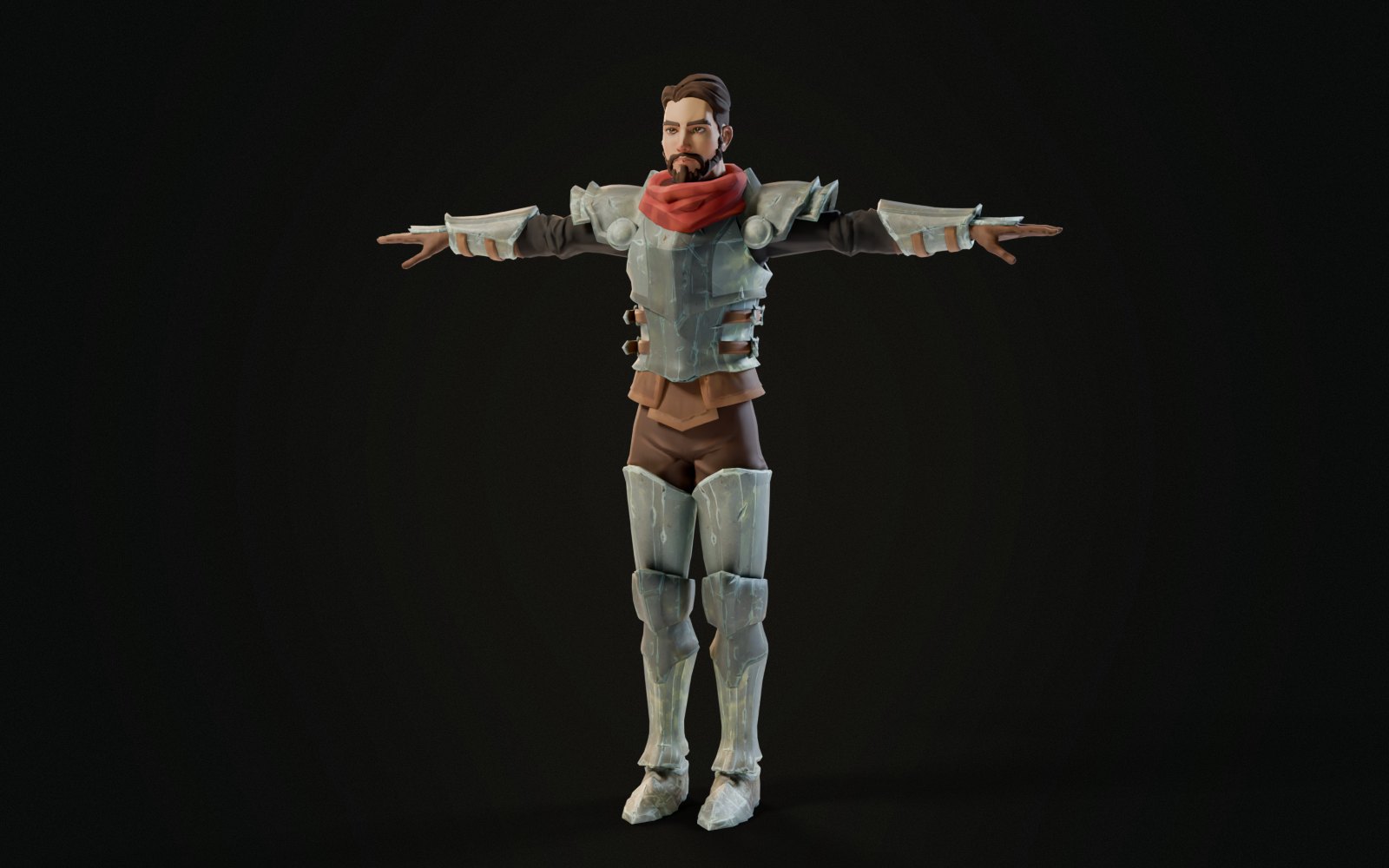
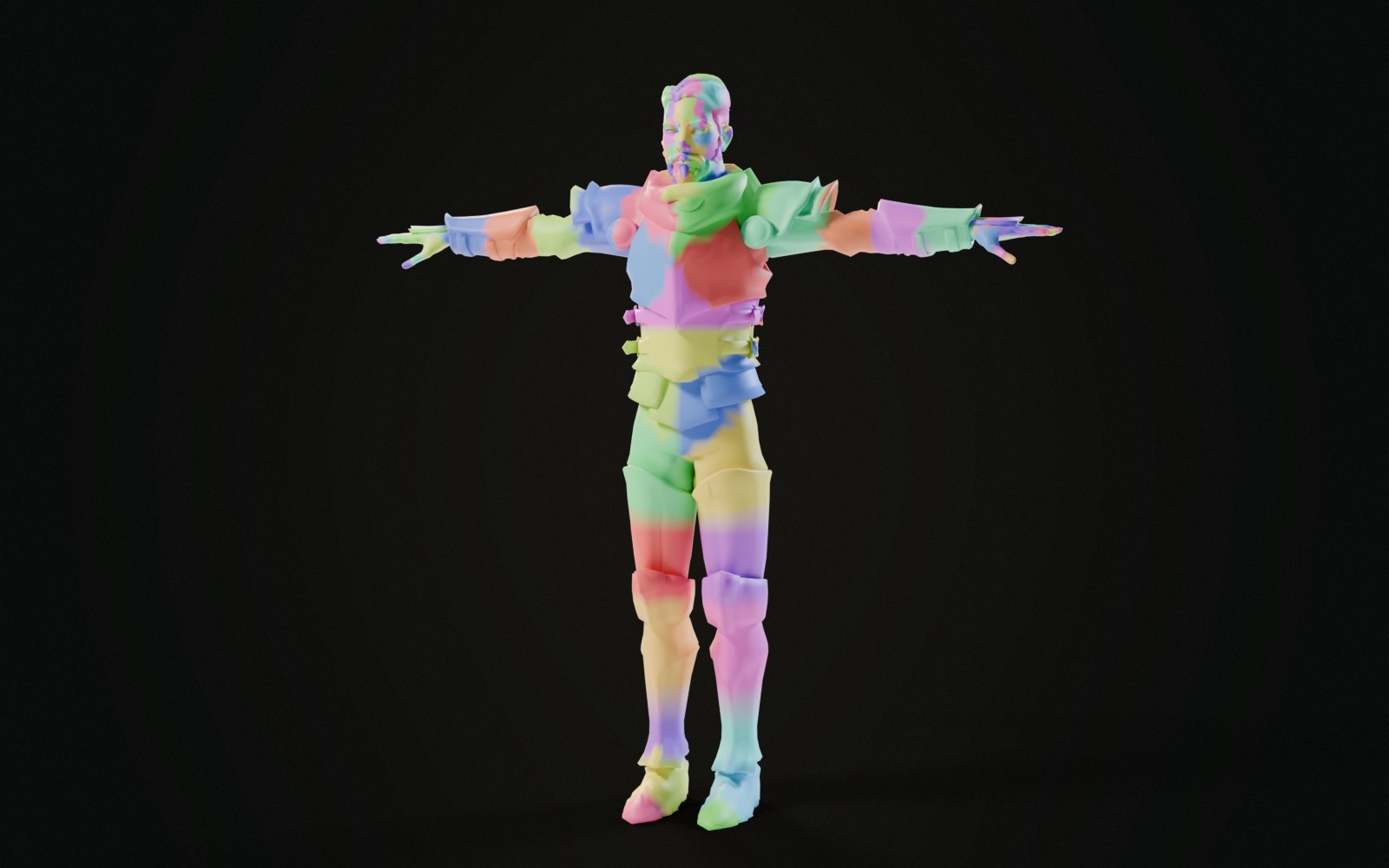
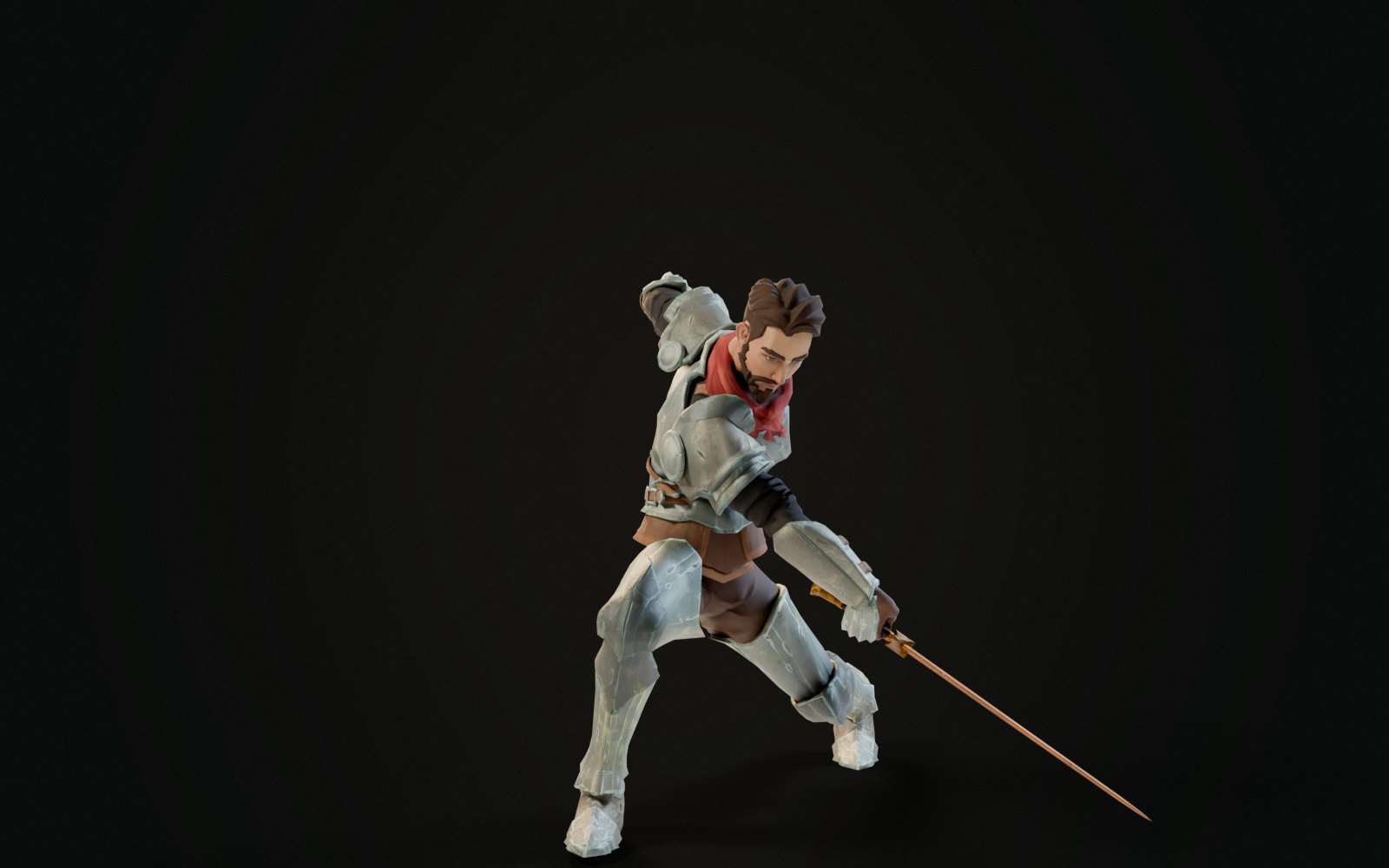
A fresh mesh has no bones, no weights and no motion. RigBridge gives it all three, then ships it to your engine. This is the knight, start to finish.

The knight as a bare mesh in his T-poseThe mesh
The same knight with Smart Fit's skeleton glowing inside himSmart Fit · 0.9 s
The knight painted with his weights, a colour for each boneAuto-Weights · 47.9 s
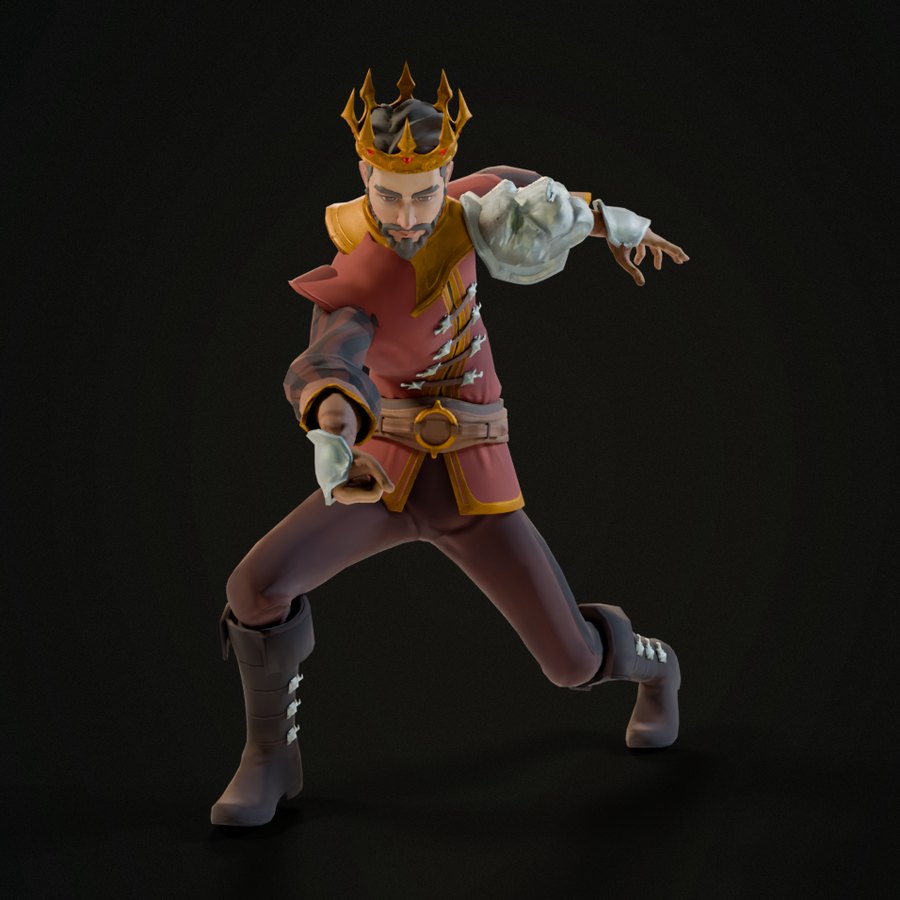
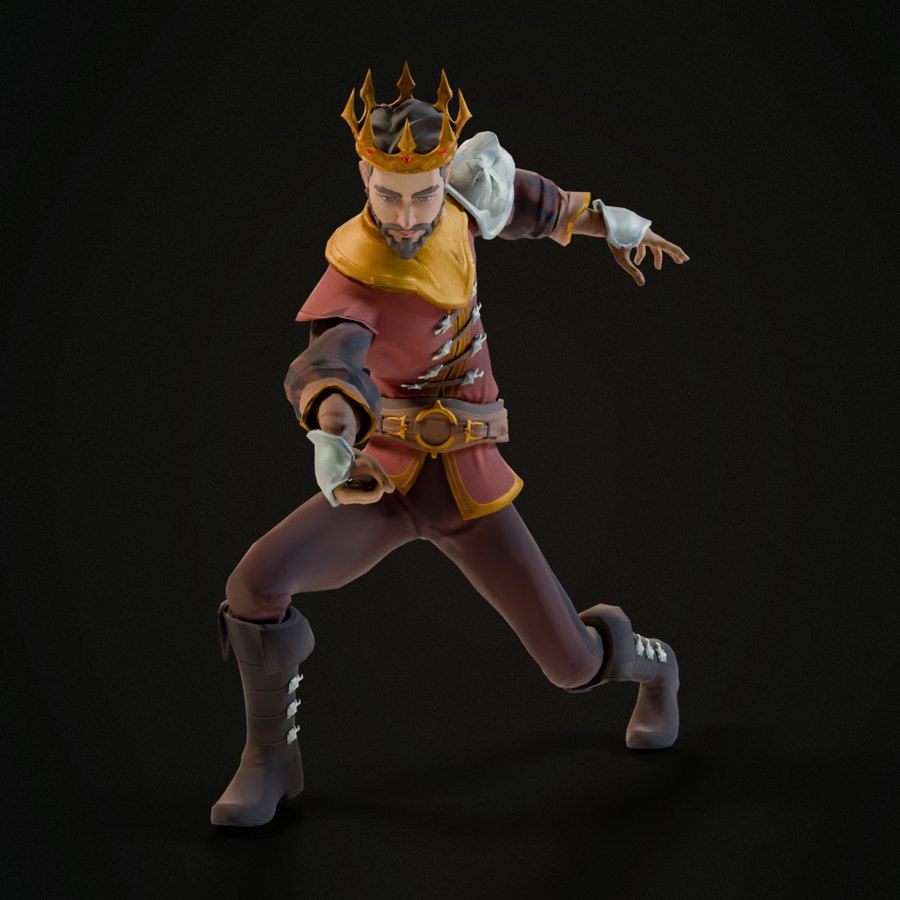
The knight lunging with a sword, moved by a retargeted clipRetargeted clip

How it works

Six clicks, from mesh to engine.

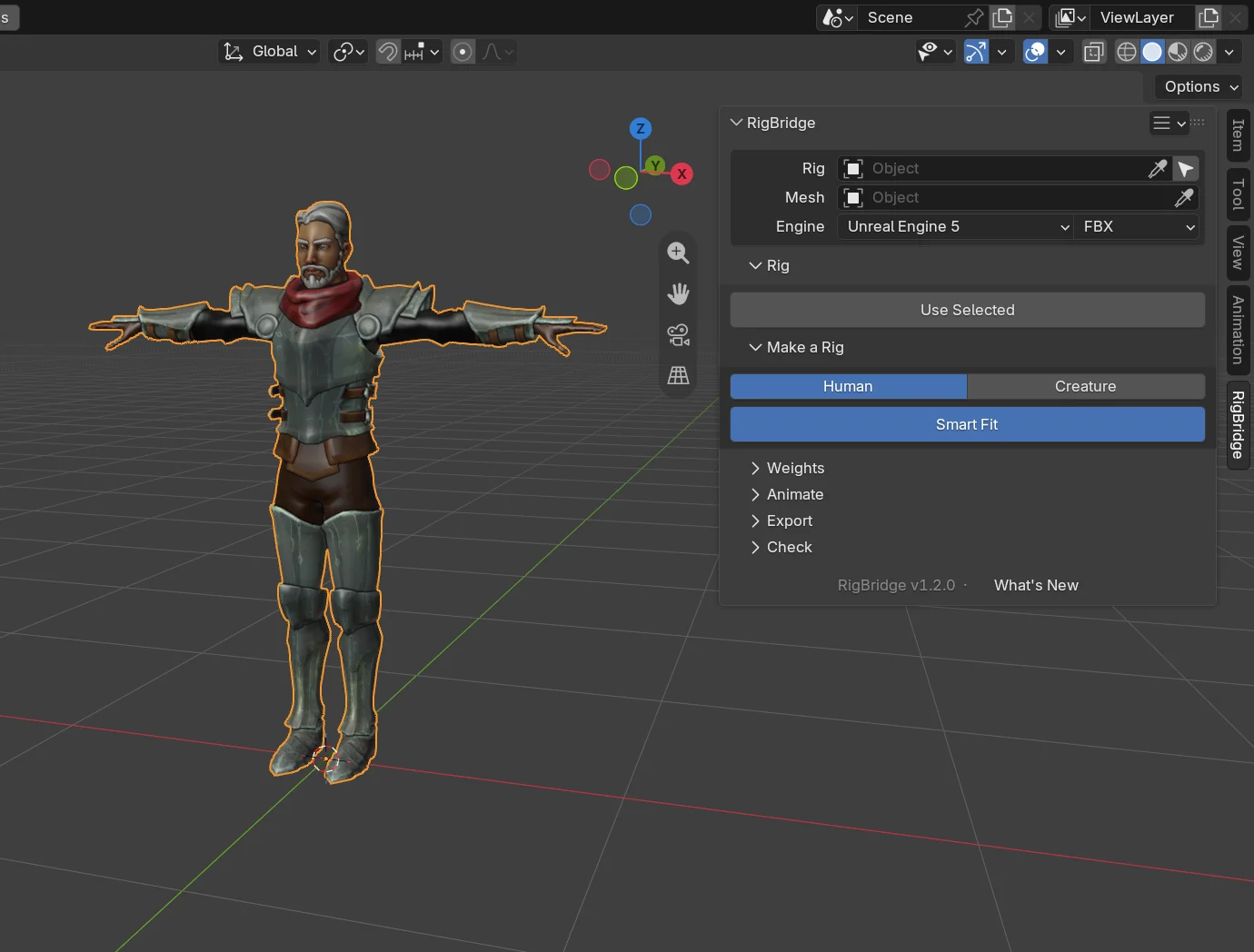
RigBridge is one panel in Blender's sidebar, and its blue button is always the next thing to do. Here's the knight, timed as it happened.

Timed on my PC (Ryzen 9 5950X) with the knight's 15,000 vertices. Across all twelve outfits it took 1 to 3 minutes; yours depends on your character and your PC.

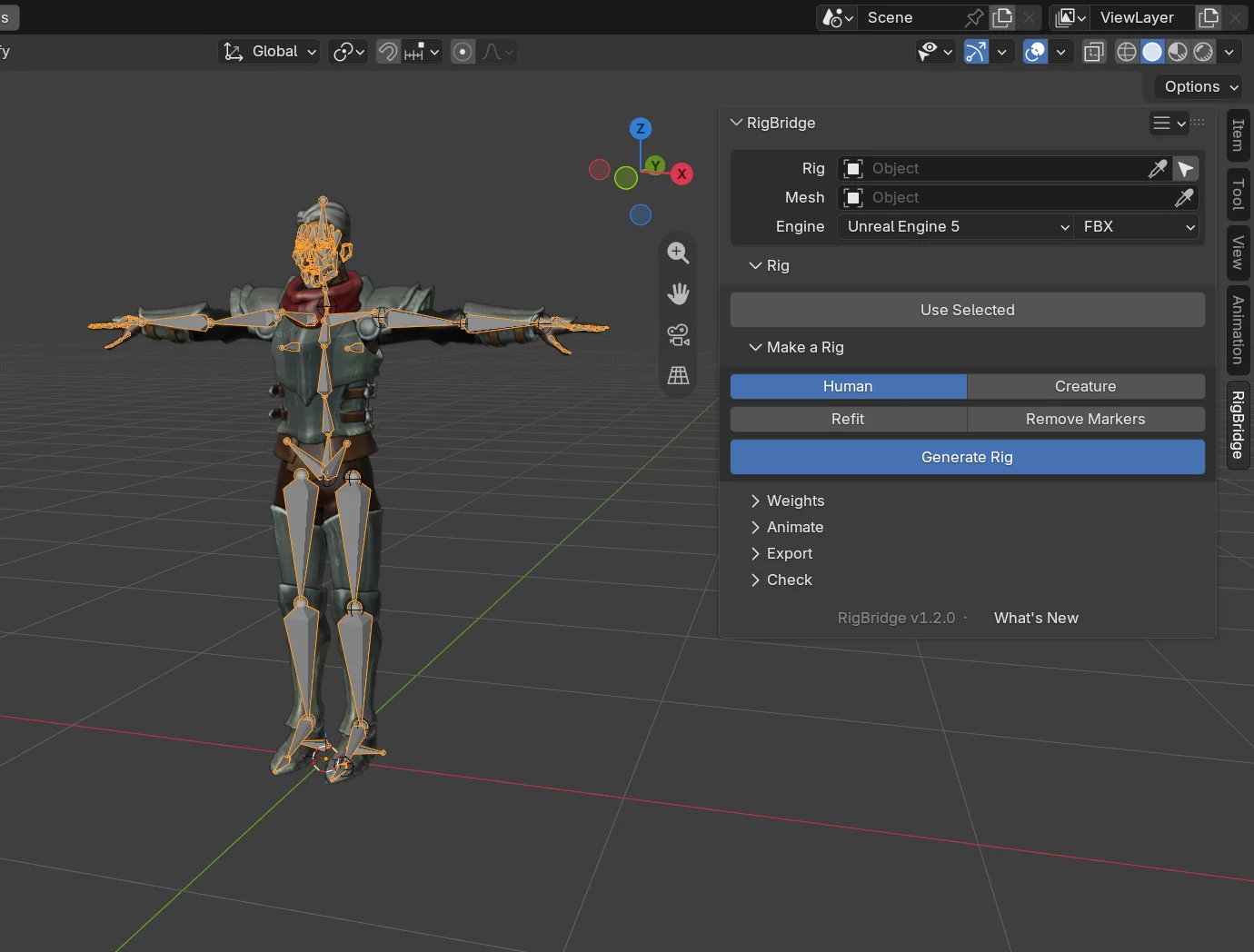
The RigBridge panel on the bare knight, Smart Fit nextThe panel after Smart Fit: the metarig on the knight and Generate Rig nextSmart Fit · 0.9 s
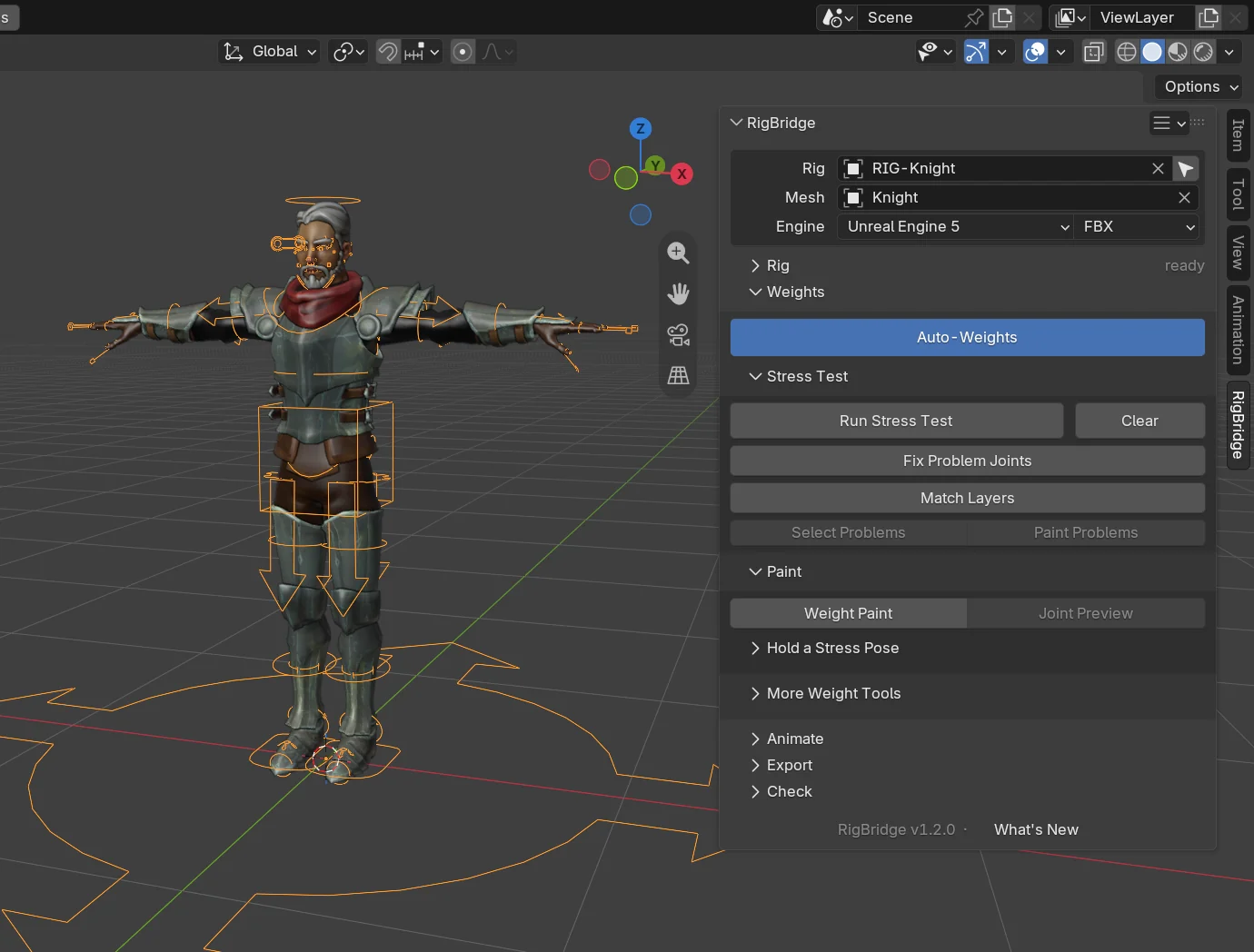
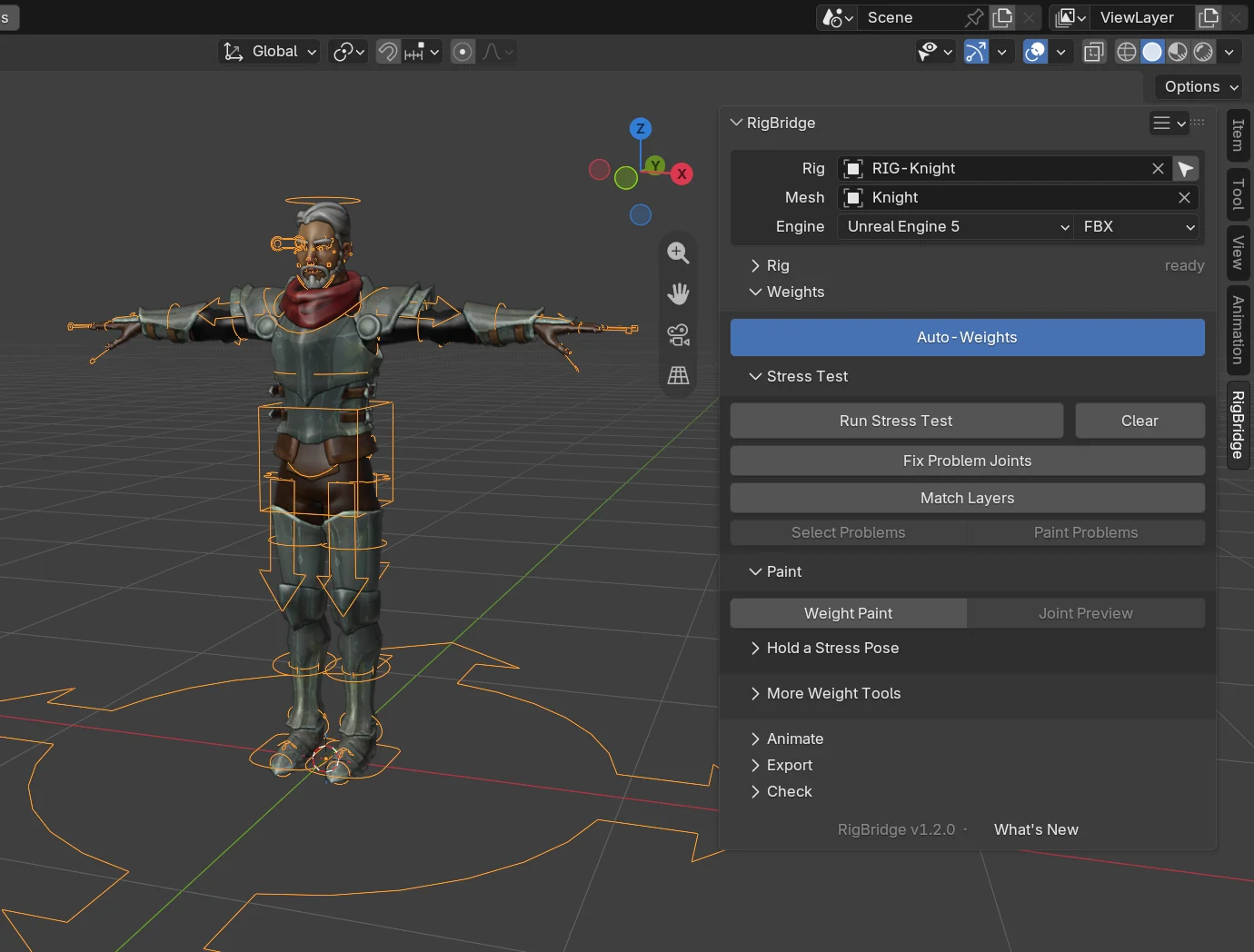
The panel with the fitted metarig, Generate Rig nextThe panel after Generate Rig: the knight's rig at the top and Auto-Weights nextGenerate Rig · 4.5 s
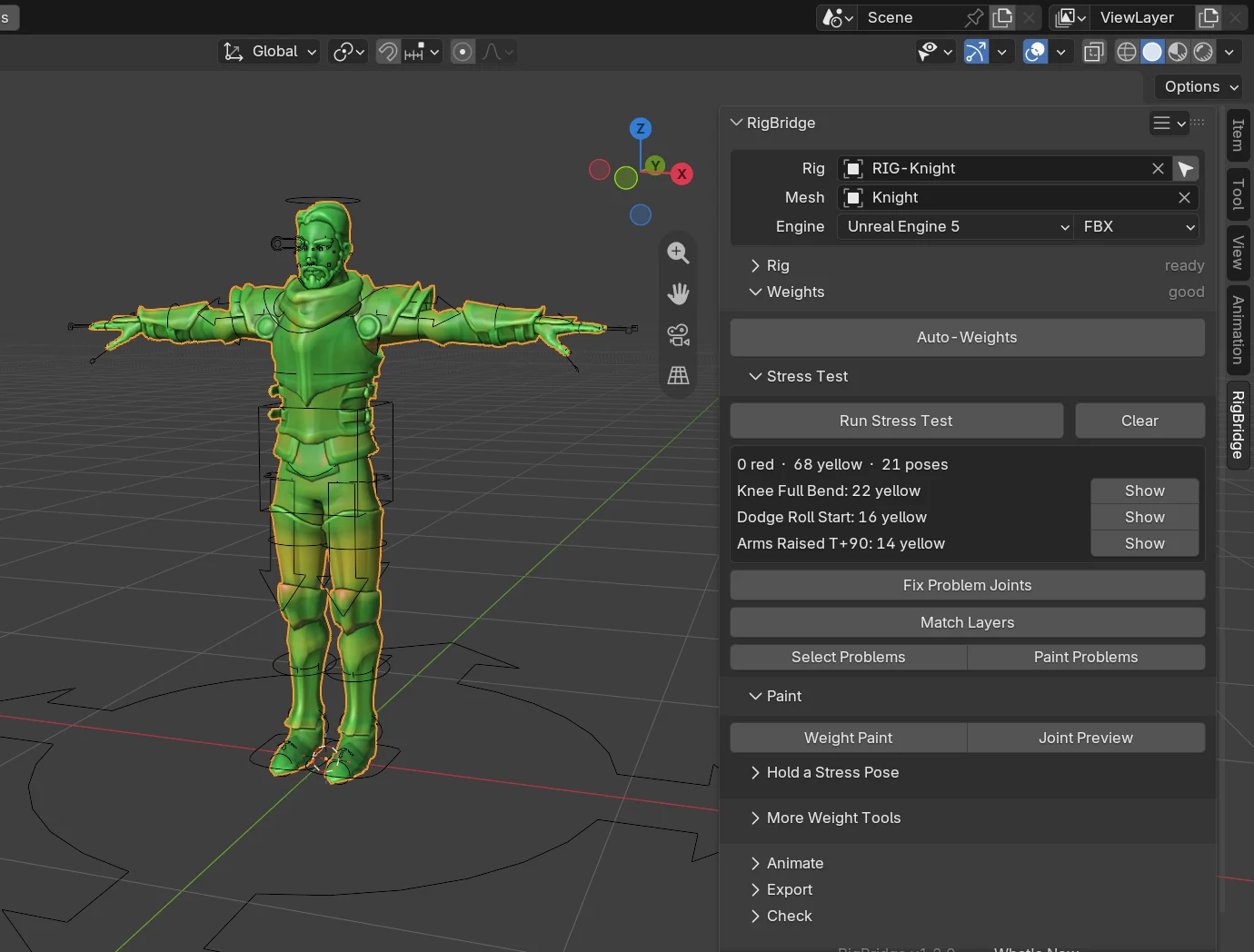
The Weights section, Auto-Weights nextThe stress test after Auto-Weights: 0 red, the knight painted green and yellowAuto-Weights · 47.9 s
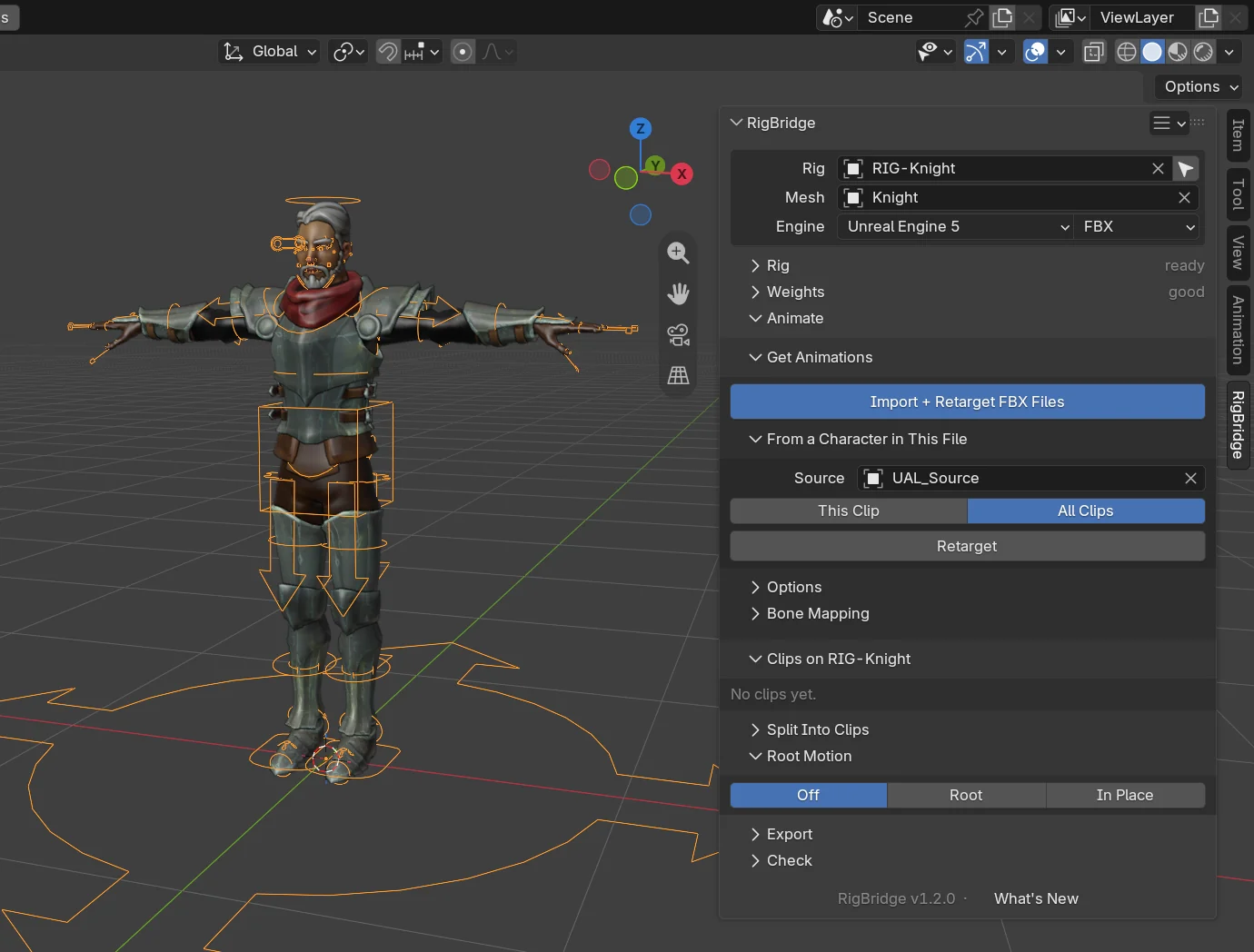
Get Animations with the library's skeleton as the source and All Clips pickedGet Animations · 31.7 s
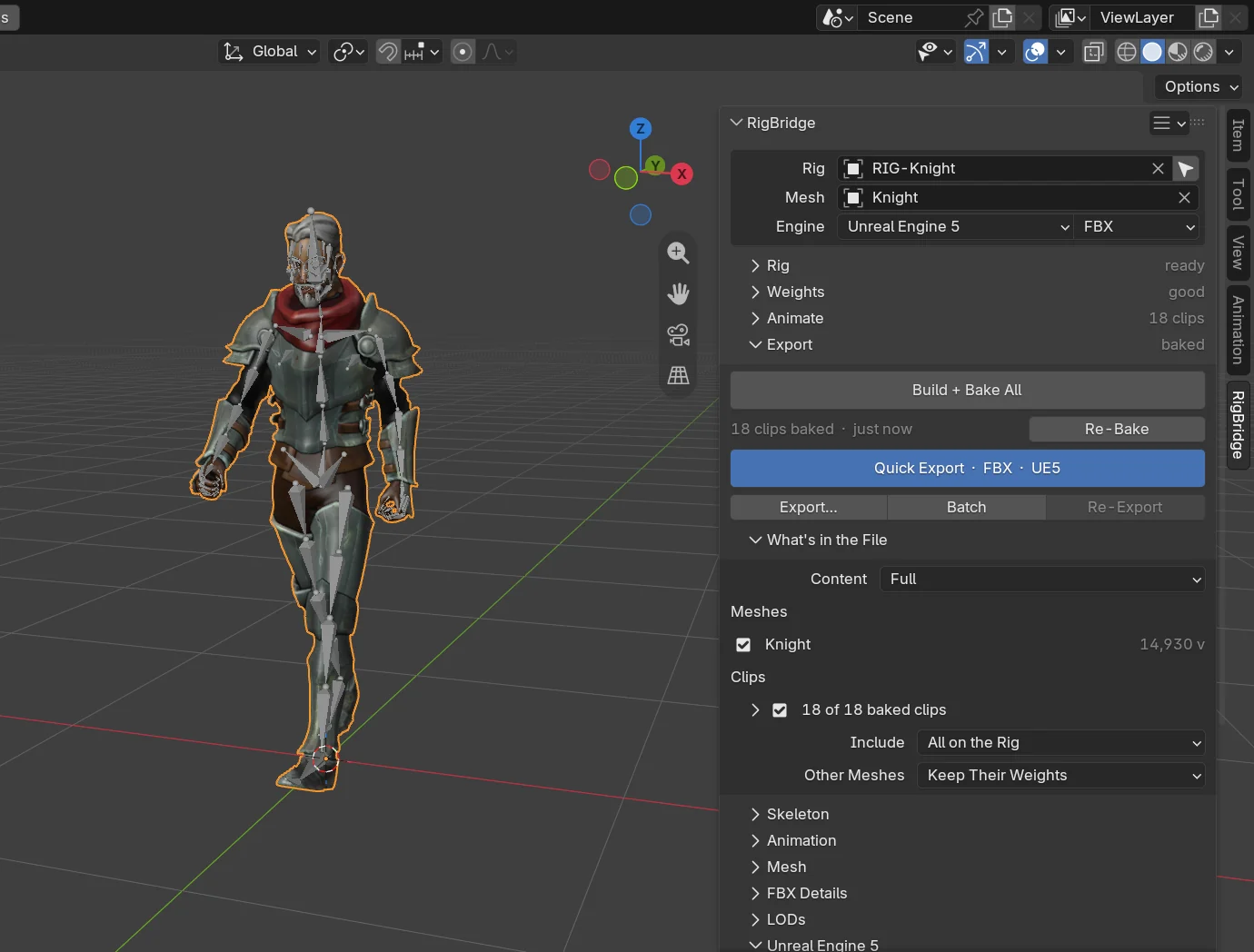
The Export section, Build + Bake All nextThe Export section after the bake: 18 clips baked, Quick Export nextBuild + Bake All · 5.8 s
The Export section, Quick Export nextThe panel after Quick Export: Knight.fbx writtenQuick Export · 6.9 s

01 · Rig Full

One click, and the skeleton fits the body.

Smart Fit measures the character and places all 159 bones of a Rigify metarig, fingers and face included. Generate Rig then builds the full control rig.

The wizard in a T-pose, a plain mesh The same wizard with Smart Fit's skeleton on her: cream bones, orange joints and markers
The meshAfter Smart Fit
Six men in a row in the kit's six outfits, in their idle poses The same six men with their skeletons glowing inside them
Six meshesSix skeletons
Ranger1.4 sPeasant1.1 sKnight1.6 sWarrior1.9 sNoble1.6 sWizard1.1 s
The knight's gauntlet, its plated fingers touching along their length The same hand with a bone in every finger joint and the thumb
Every finger, even in a gauntlet.Three bones each, the knuckles in line.
The wizard's face The same face with the eye, lid, brow, lip and jaw bones on it
The whole face, brows to jaw.Placed from the eyes, the nose tip and the chin.
159bones placed, from the spine to every finger and the face
~1 sto measure a game character and place them all
10markers on the joints it measured: move one and press Refit
89characters it's checked on before every release

02 · Weights

See where it breaks, before your players do.

Auto-Weights binds every part of the mesh and repairs what the stress test shows red. The stress test bends the character through 21 hard poses and paints how each vertex holds.

Blender's own weights
Pose 8 of 21Deep Squat
Blender's automatic weights
RigBridge Auto-Weights

It plays through the poses by itself: Blender's weights, then RigBridge's. Red is where she breaks.

Nothing left behind.

Blender's own automatic weights leave buckles, studs and pauldrons where the T-pose put them. RigBridge's Auto-Weights binds every piece to the body under it.

The noble mid lunge with Blender's automatic weights: his lion pauldron hangs in the air off his shoulder and his gold collar stays behind, where the T-pose left themThe same lunge with RigBridge's Auto-Weights: the pauldron rides on his shoulder
BlenderRigBridge
The nobleHis lion pauldron and trims: 528 vertices left where the T-pose put them.
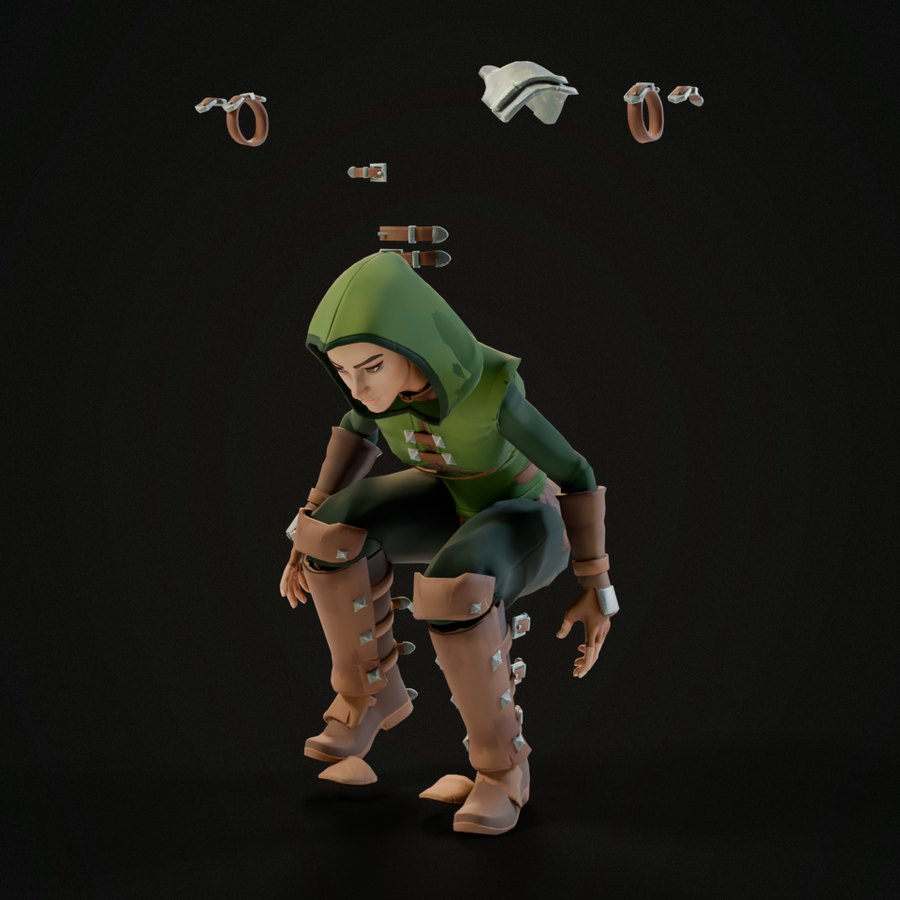
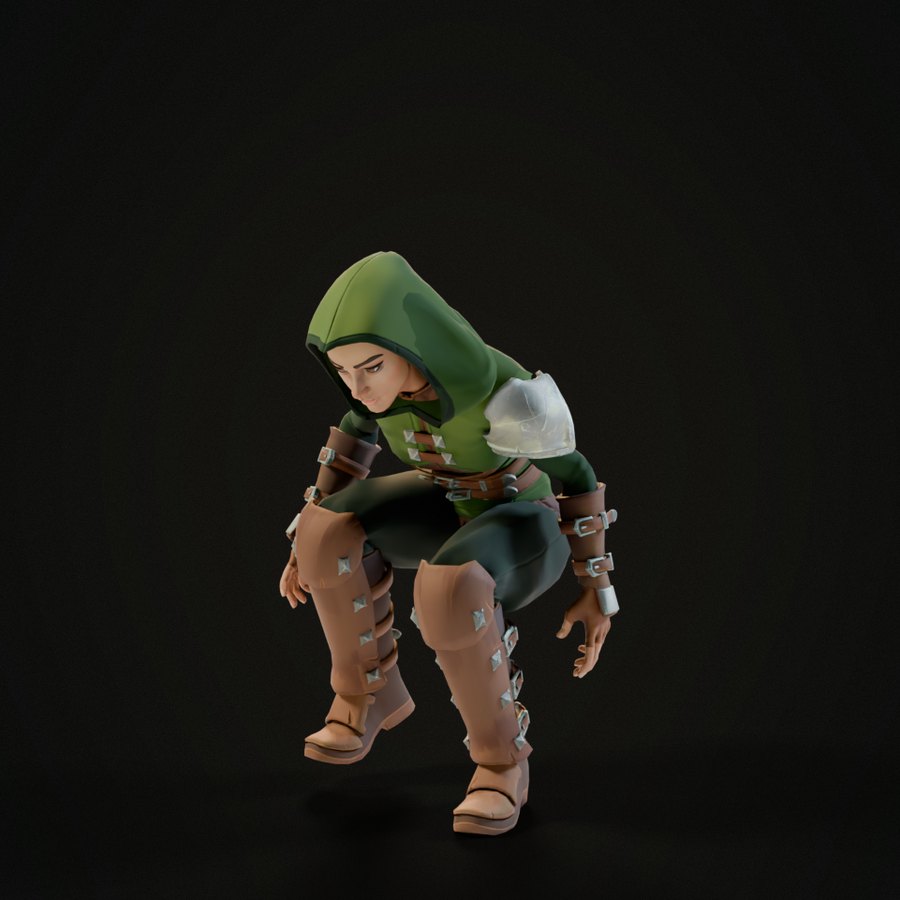
The ranger sneaking forward, crouched, with Blender's automatic weights: buckles, bracers and her pauldron float above her, where the T-pose left themThe same step with RigBridge's Auto-Weights: every buckle and the pauldron stay on her
BlenderRigBridge
The ranger3,869 vertices of buckles, studs and her pauldron float off.
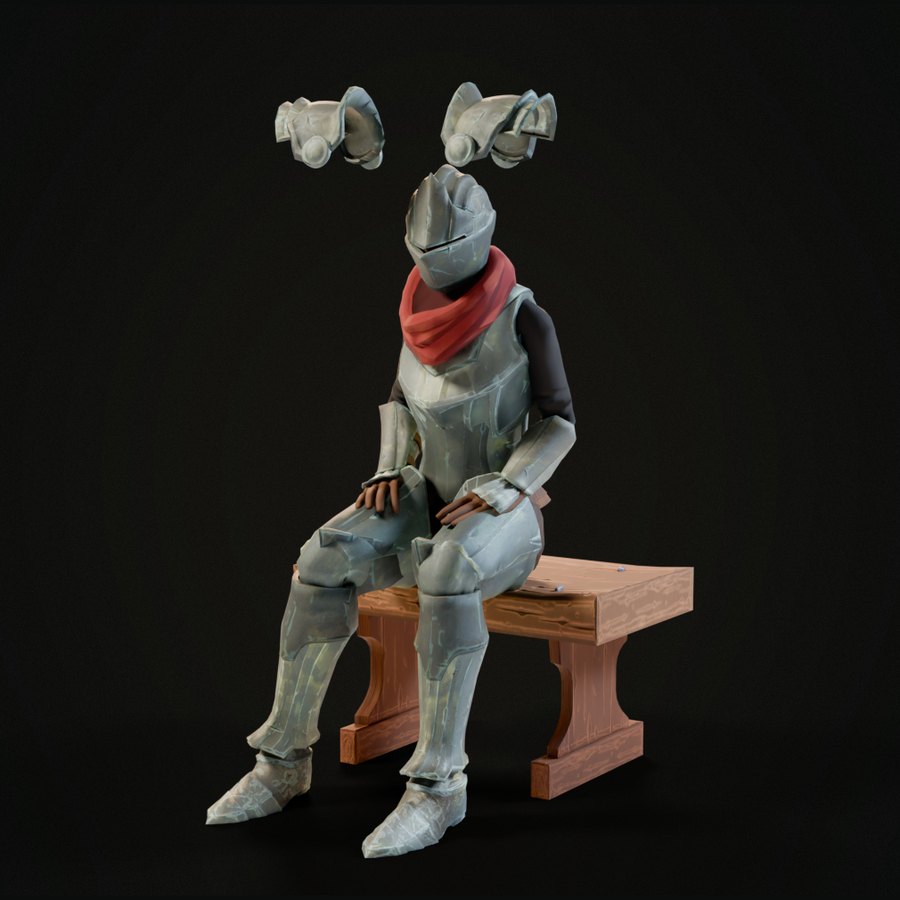
The knight sitting on a bench with Blender's automatic weights: her pauldrons hang in the air above herThe same seat with RigBridge's Auto-Weights: both pauldrons stay on her shoulders
BlenderRigBridge
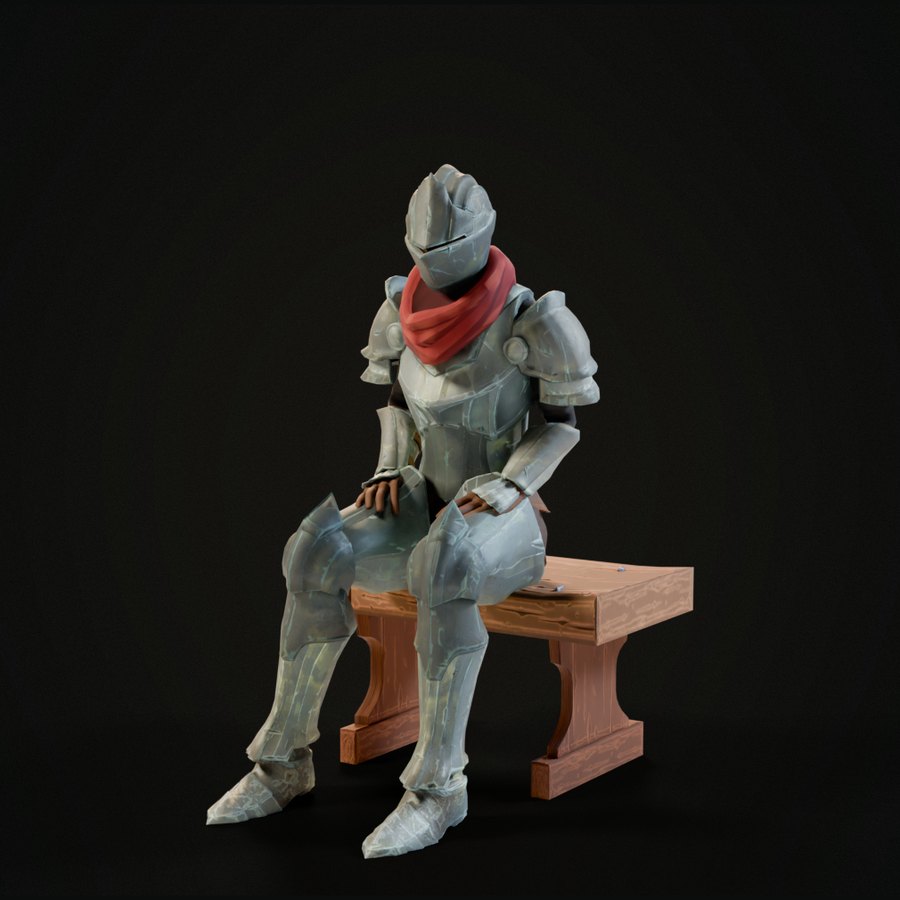
The knightBoth her pauldrons, 1,962 vertices, hang in the air.

03 · Animate Full

Any animation, on your character.

Point it at FBX files or a skeleton in your scene. RigBridge matches the bones, lines up the poses, scales the stride to your character's legs and gives every clip its own action.

Source skeletonYour rigsIdle
Source skeletonYour rigsWalk
Source skeletonYour rigsJog
Source skeletonYour rigsSprint
Source skeletonYour rigsSword attack
Source skeletonYour rigsPunch
Source skeletonYour rigsRoll
Source skeletonYour rigsDance
Source skeletonYour rigsSpell

Every clip on all three skeletons at the same frame. The clips aren't included: RigBridge works with your own.

Root Motion from Hips Full

Let the engine move the character.

Game engines move a character by its root bone, but most walks move the hips. Root Motion puts the hips' travel on the root when the clips bake; In Place takes it off.

In Place
The root stays put.Your game code moves him.
Root Motion
The root carries her walk.The engine follows it.

The orange ring is the root bone.

04 · Export

A skeleton the engine accepts.

Build + Bake All turns the control rig into a clean game skeleton and bakes every clip onto it. The FBX goes out at scale 1 with the exact bind pose, named for your engine.

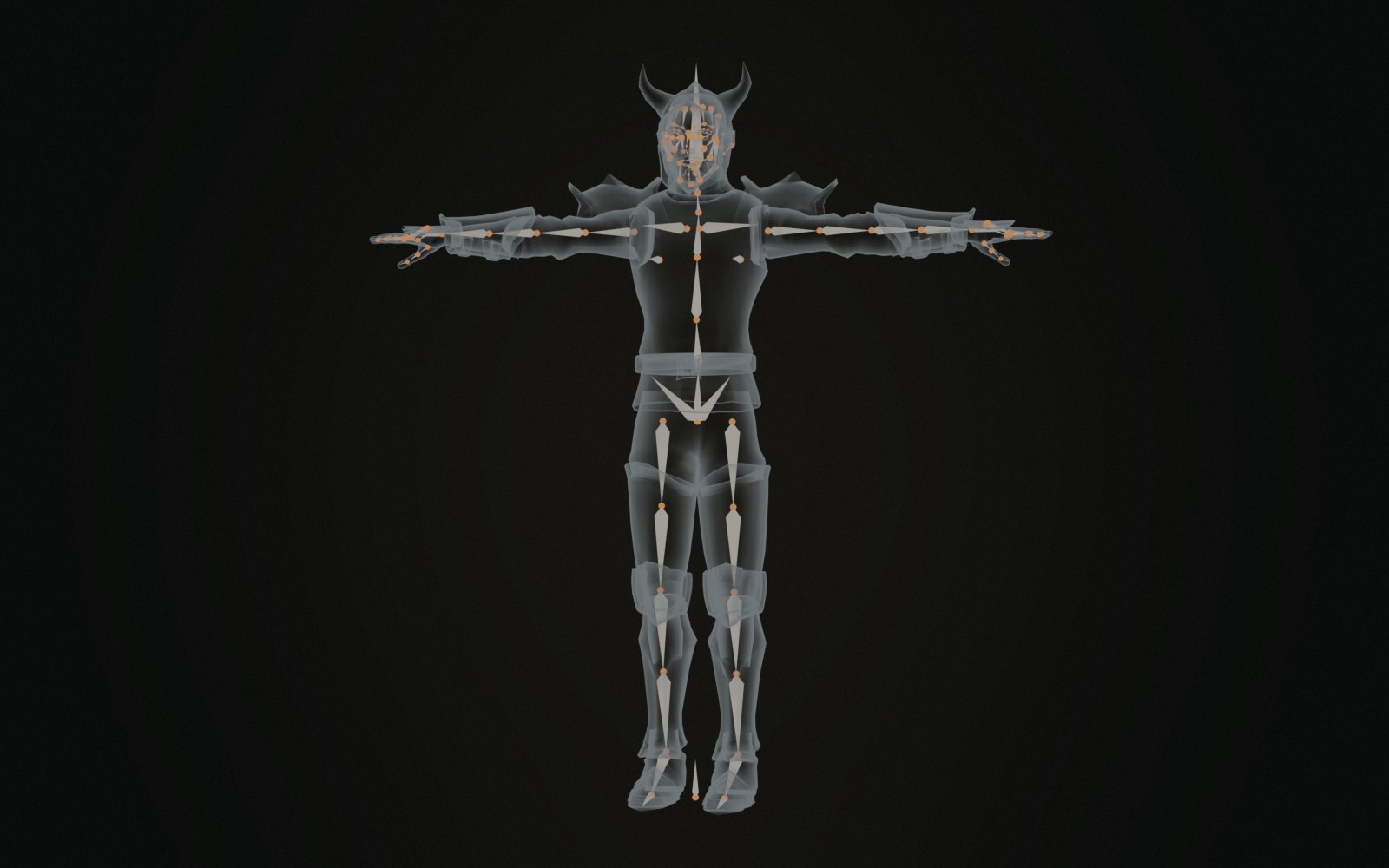
The warrior drawn see-through, with the exported game skeleton inside him and its bone names
702→161bones, from Rigify's control rig to the game skeleton that ships, twist bones and face included
Unreal Engine 5 and 4
Manny's or the Mannequin's bone names in centimetres, plus the IK bones Unreal's retargeter expects.
Unity
Rigify's deform names and Unity's axes; every clip plays as a Generic animation.
Godot
Rigify's deform names, glTF 2.0 with the textures inside, or FBX.
Custom
Your own FBX settings, Rigify's deform names.

Also in Export

Split Into Clips

Cut one long take into animations at the playhead or at markers.

Export All Setups

Every saved character in the file, built, baked and exported in one go.

Skeleton change warning

If an export renames, adds or moves a bone, you're told which.

Weapons and props

Anything parented to a bone arrives attached to it in the engine.

Batch, LODs, glTF

One FBX per clip, generated LODs, and glTF 2.0 when you need it.

Check Everything

The rig, the weights, the bake and the export checked in one click.

05 · In your engine

Drop the file in. Press play.

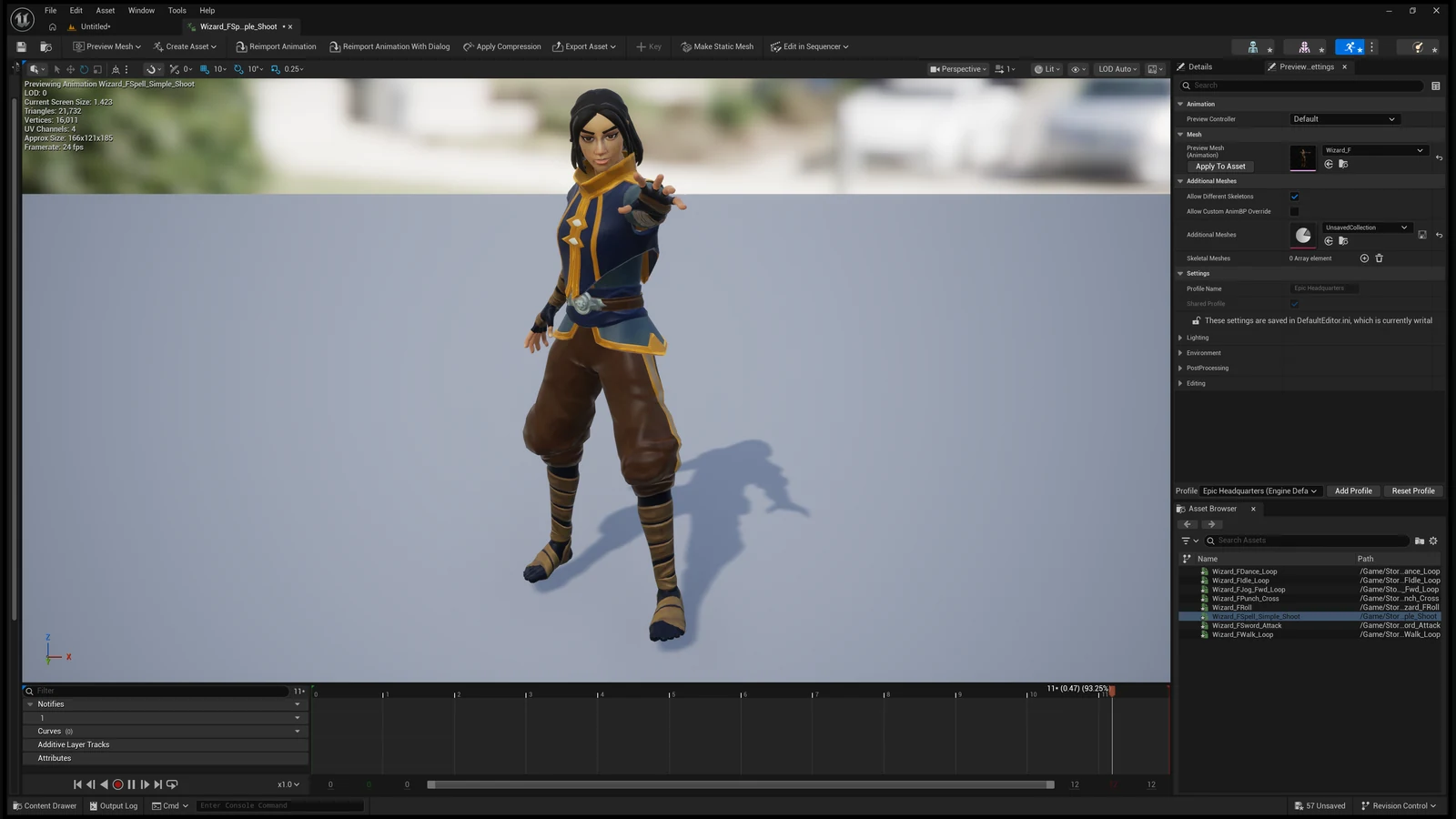
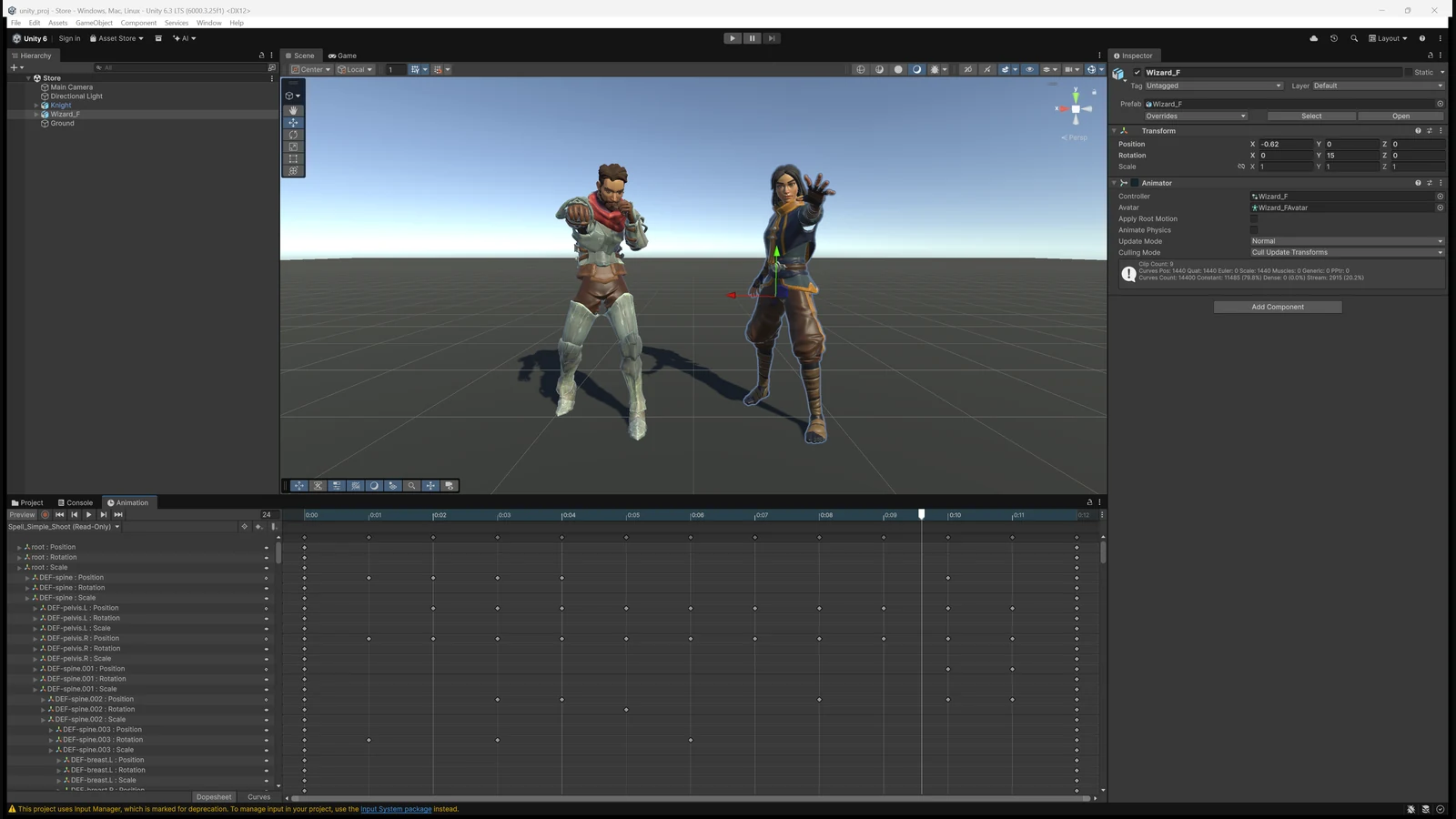
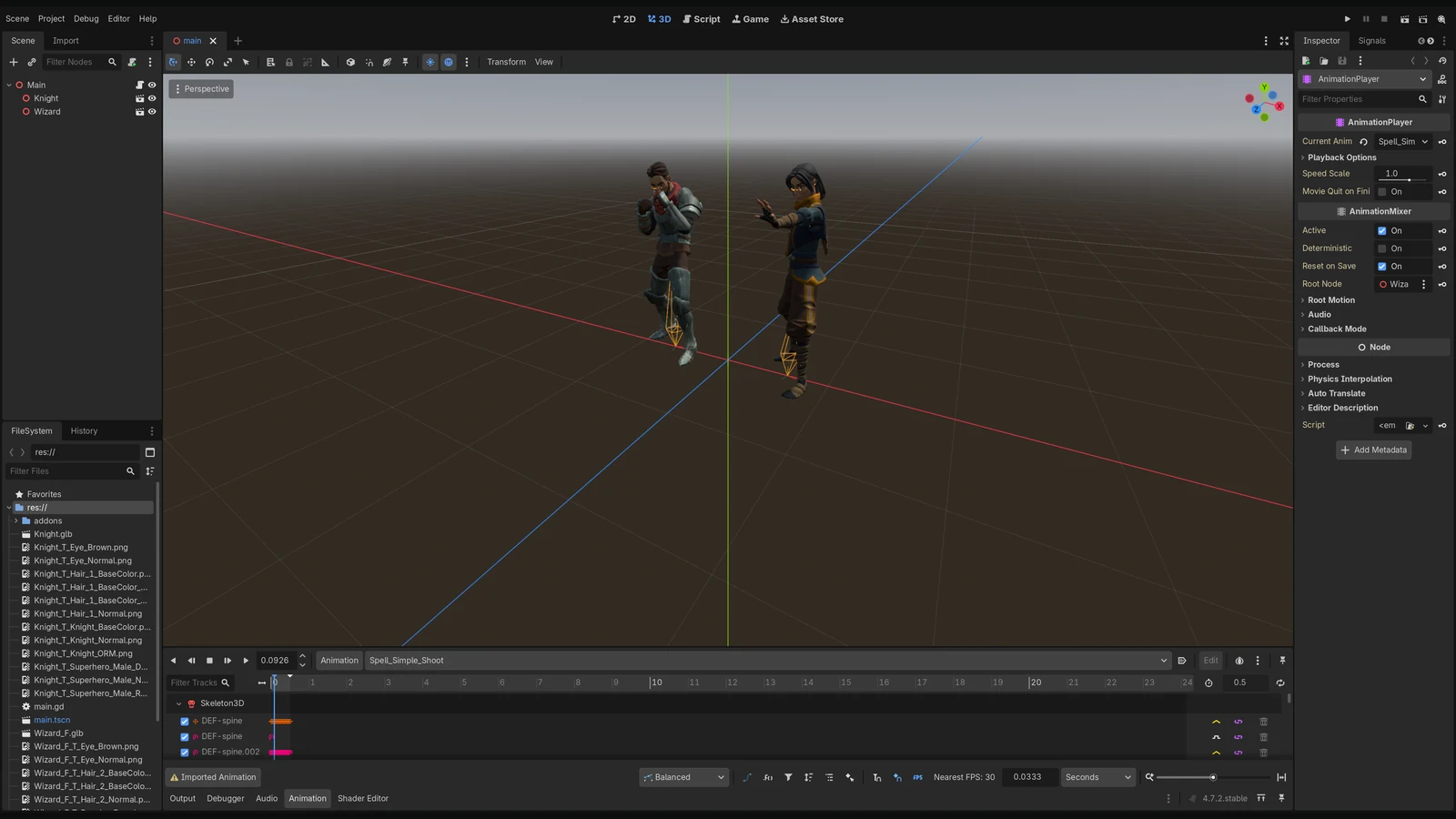
The same two exports in Unreal, Unity and Godot, each with the engine's own importer. Nothing fixed or retargeted on the way: every clip arrives under its own name.

The Unreal Editor with the wizard's Spell_Simple_Shoot open in the animation editor, Manny's bone names in the skeleton tree
The Unity Editor with both characters in the scene and the wizard's Spell_Simple_Shoot in the Animation window, a track on every bone
The Godot editor with both characters in the scene and the wizard's Spell_Simple_Shoot open in the Animation panel, its tracks on the Skeleton3D's bones

Creature Pack Full

Seven creatures, rigged for games.

Fit one to your model, generate, and run the same pipeline. Eyes that follow a target and blink with one control, feet that stay planted, a face made for the animal.

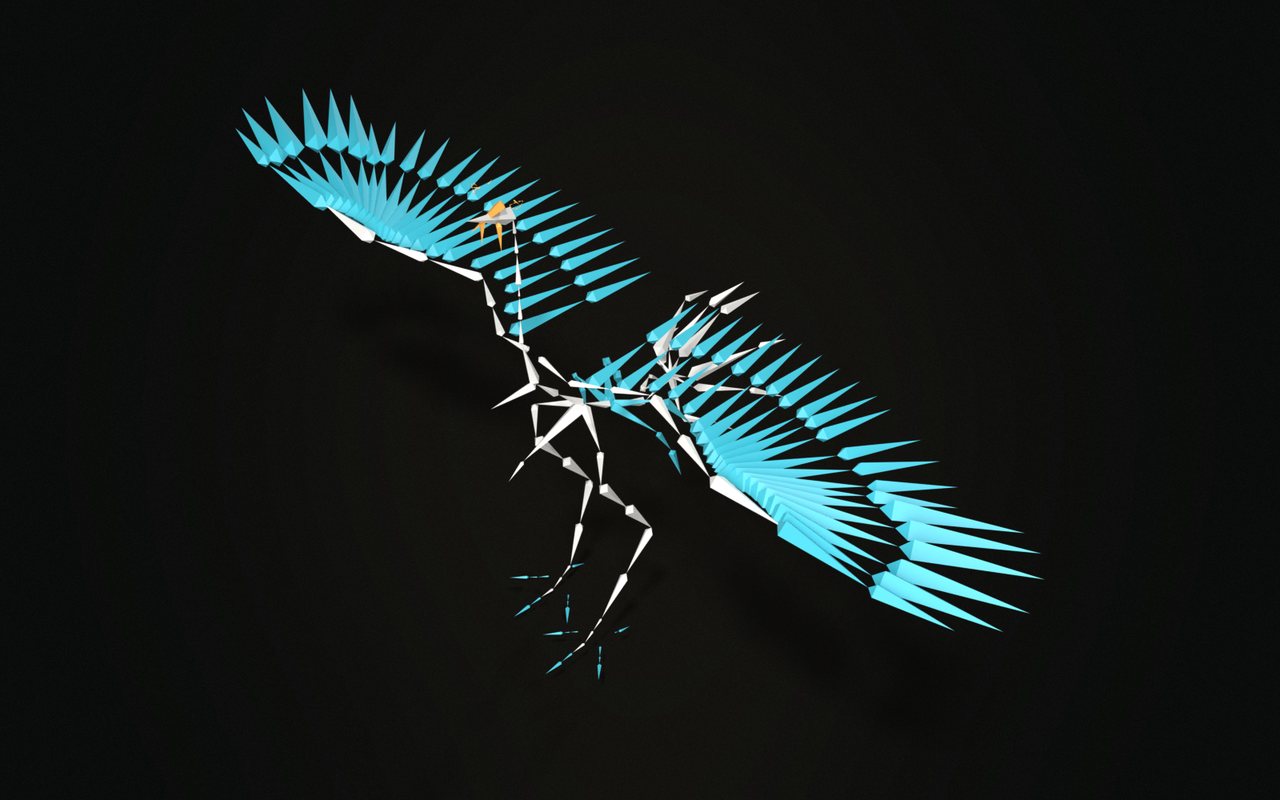
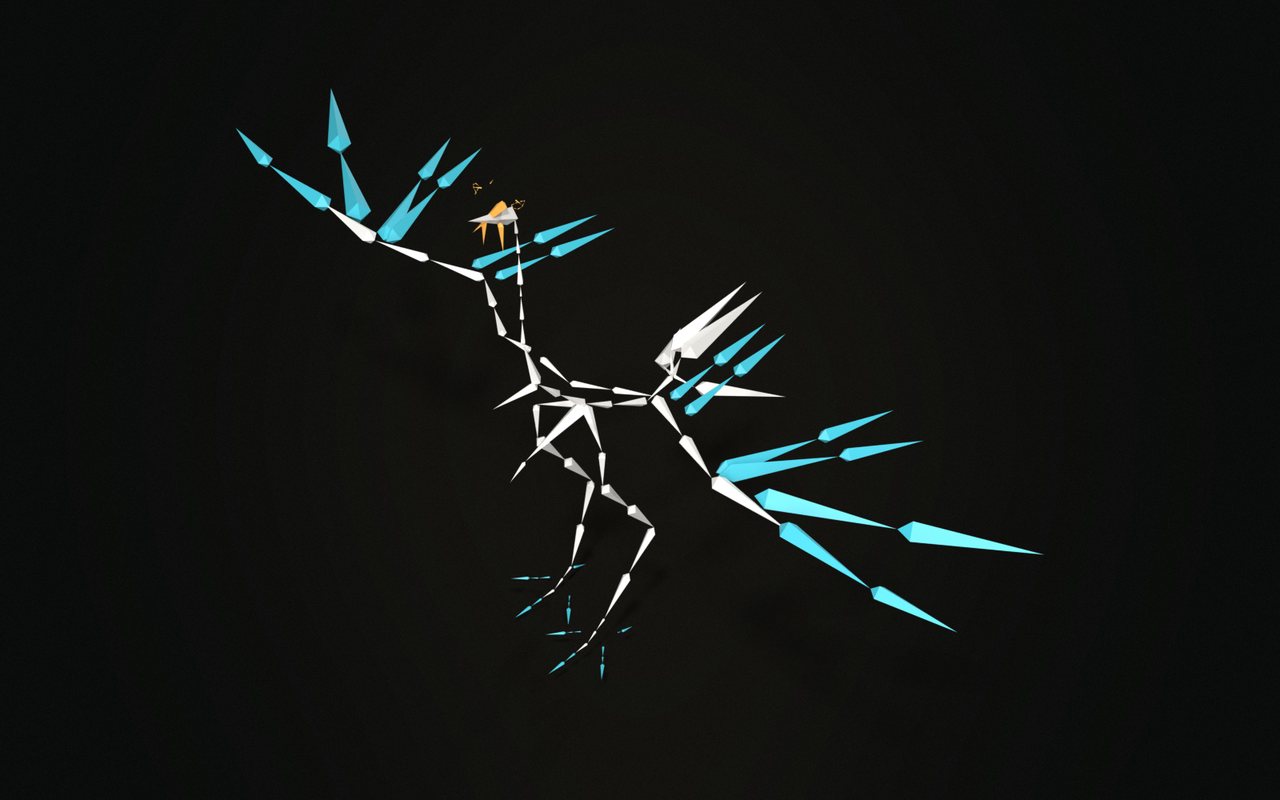
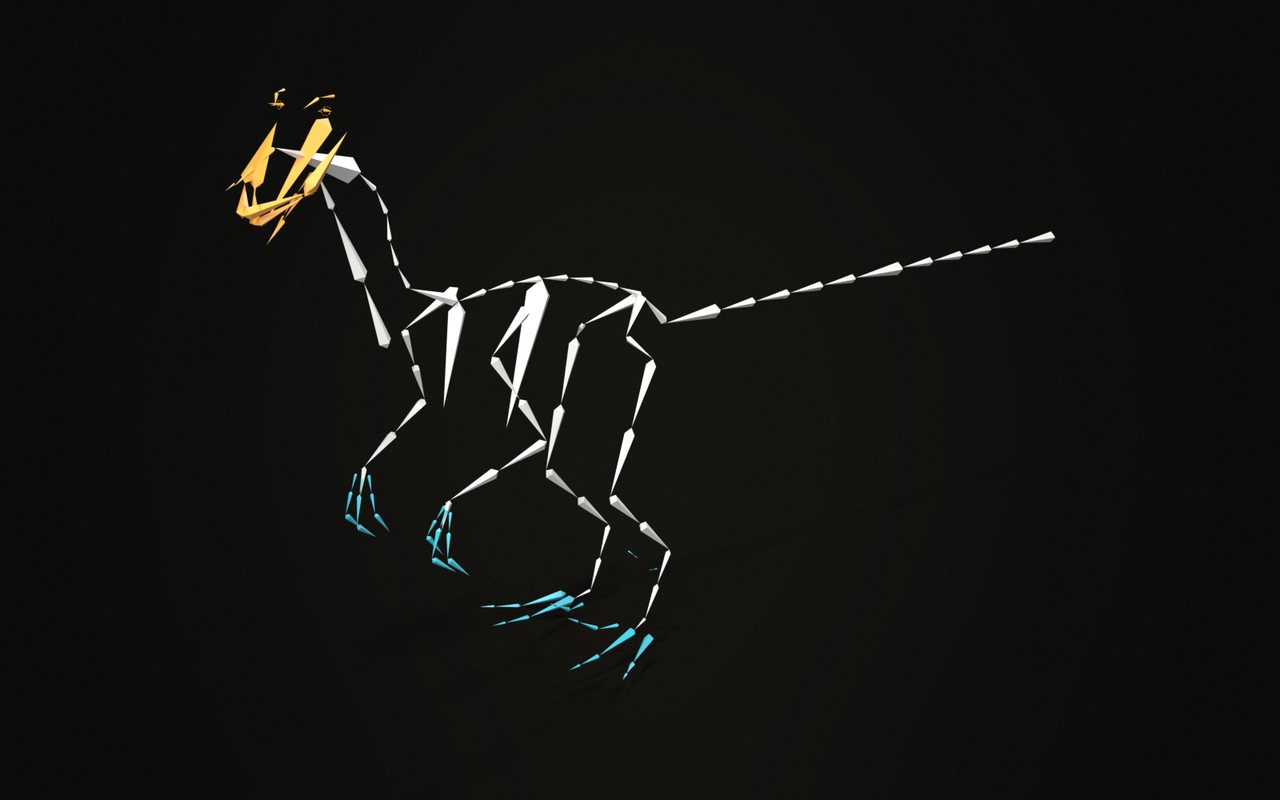
The Raptor rig

Twelve seconds from mesh to rig.

Create Metarig sized the Raptor to this mesh and stood it where the raptor stands. Generate Rig built it, and Auto-Weights weighted it: 0 red in the stress test.

A few keys on its controls do the rest: the head and neck look round, the twelve-bone tail sways, and the IK legs keep the feet on the ground.

The Chicken metarig, generated with Rigify, in a relaxed pose
Chicken246 bones
The Chicken (Light) metarig, generated with Rigify, in a relaxed pose
Chicken (Light)128 bones
The Pig metarig, generated with Rigify, in a relaxed pose
Pig117 bones
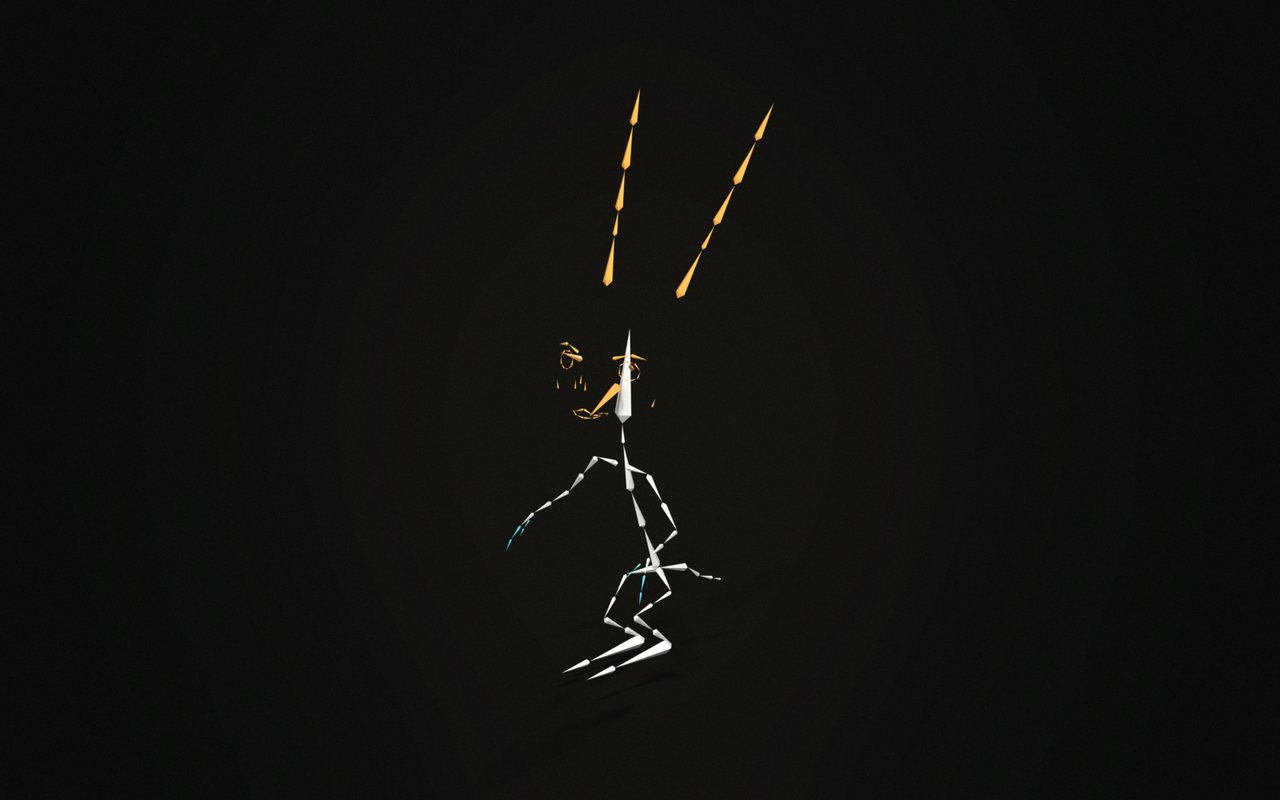
The Cartoon Rabbit metarig, generated with Rigify, in a relaxed pose
Cartoon Rabbit87 bones
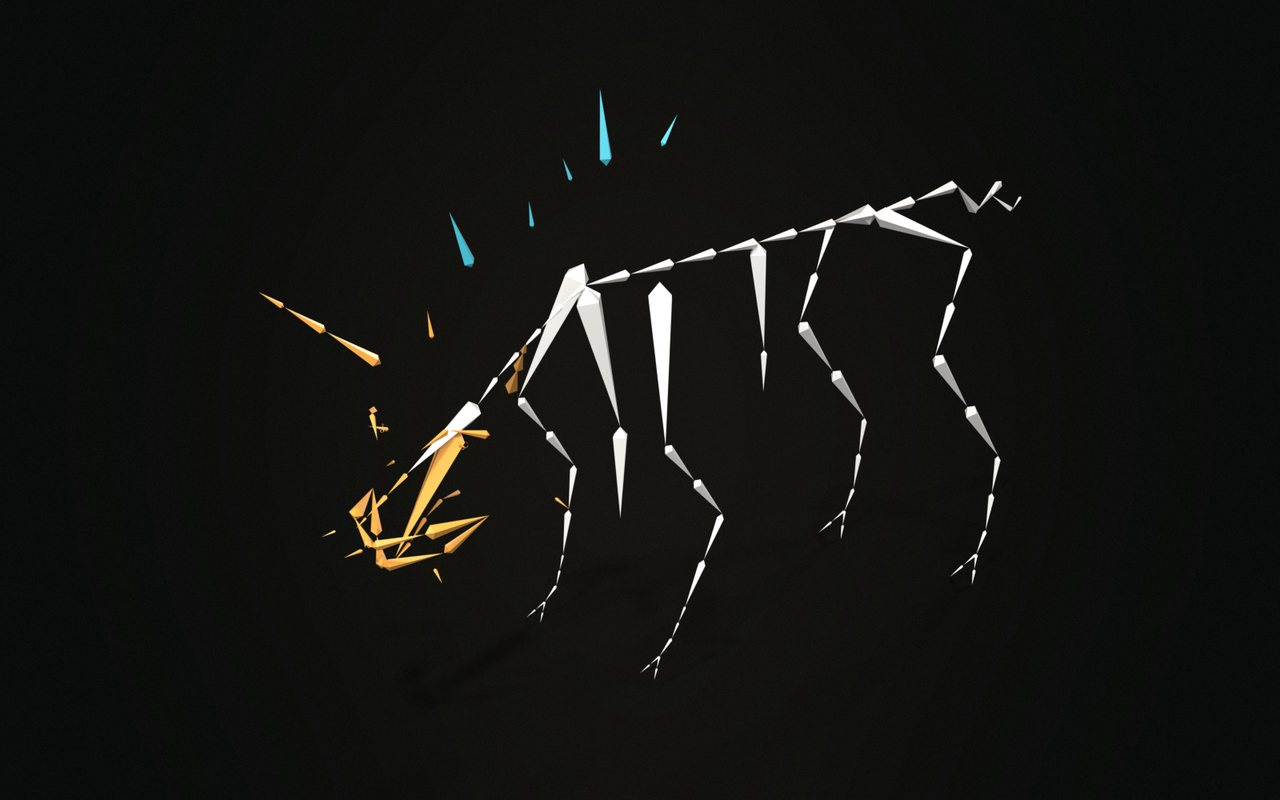
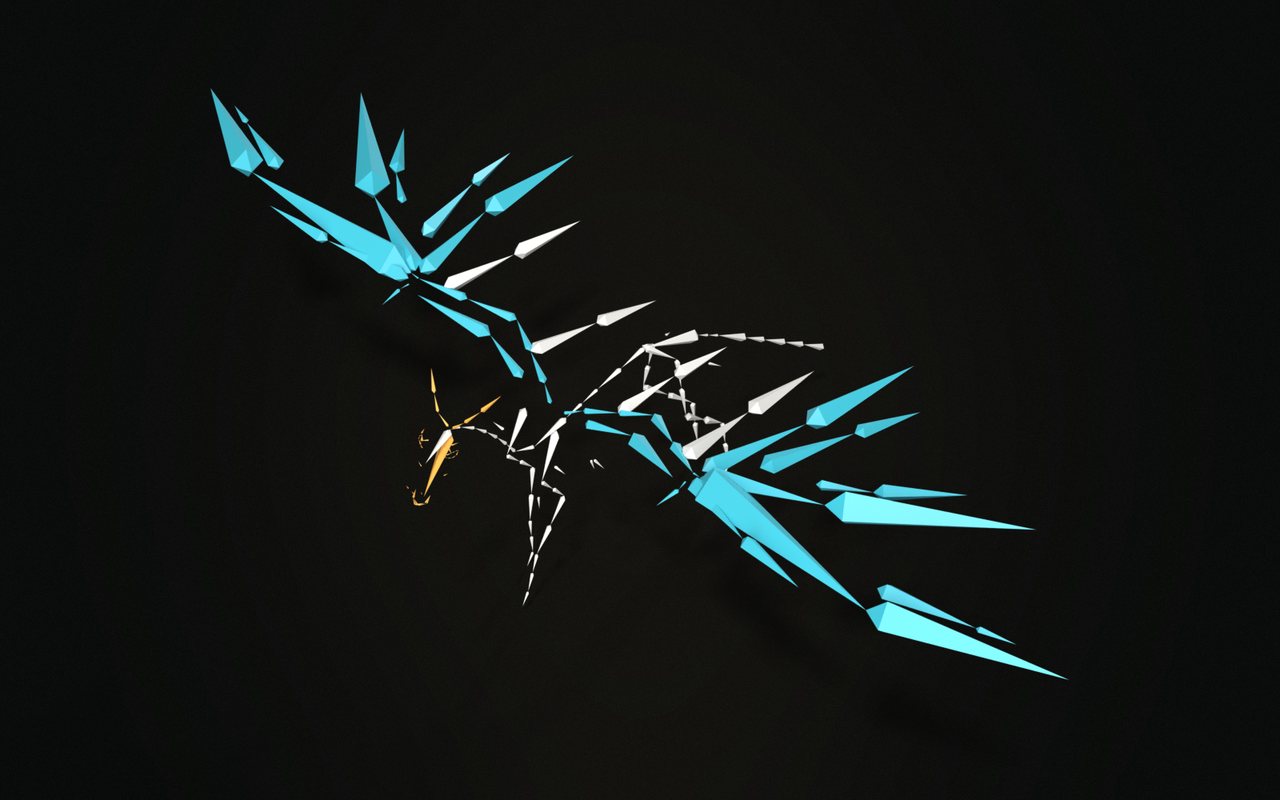
The Pegasus metarig, generated with Rigify, in a relaxed pose
Pegasus145 bones
The Raptor metarig, generated with Rigify, in a relaxed pose
Raptor135 bones
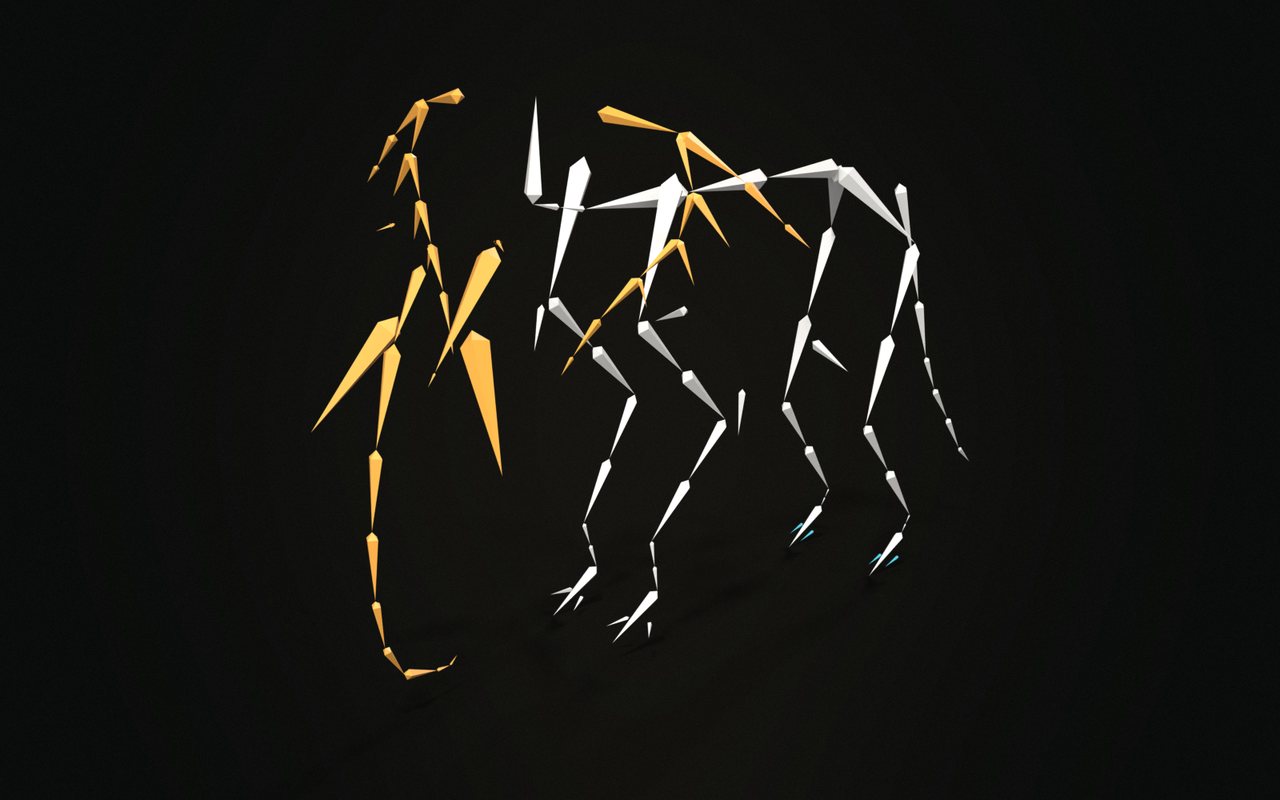
The Elephant metarig, generated with Rigify, in a relaxed pose
Elephant102 bones

The same menu also spawns Rigify's own Human, Wolf / Dog, Horse, Cat, Bird and Shark metarigs, labelled as Rigify's.

Tested

Tested on every Blender since 4.2.

Before release, both editions run the full suite on every supported version, all 107 clips of two animation libraries play on every outfit on this page, and the test characters go into Unreal.

200+automated checks on each Blender version
18/18test exports imported into Unreal Engine 5.7, clean
89characters Smart Fit is checked on, plus 62 hand poses
0failures, both editions, all seven versions
4.2LTS4.34.44.5LTS5.05.15.2LTS

Editions

Two editions. One pipeline.

RigBridge Lite gets a finished character into the engine clean. RigBridge adds everything that gets a bare mesh rigged and moving.

Start from a bare mesh? You want RigBridge.

Already have a rig and animations? Lite is the export pipeline, the weight tools and the checks, and nothing you don't need.

The characters and animations on this page are examples. They don't come with RigBridge: it works on your own.

Bought RigBridge before 1.2? You have the full edition, and every 1.x update is free.

RigBridge Lite

$25

For a character that's already rigged and animated.

  • Build + Bake All: game skeleton, every clip baked
  • FBX exporter with UE5, UE4, Unity and Godot profiles
  • Auto-Weights, the stress test and the weight tools
  • Check Everything
  • Split Into Clips, Export All Setups
Get Lite
Everything

RigBridge

$50

For a bare mesh: rig it, animate it, ship it.

  • Everything in Lite
  • Smart Fit
  • Retarget Animation
  • Root Motion from Hips
  • The Creature Pack
Get RigBridge
Blender 4.2 LTS to 5.2Tested on all seven versions before release.
A year of updatesEvery update for 12 months. After that you keep everything, and another year is half price.
Help from meMessage me on Superhive or X, and bugs get fixed.

Questions

Good to know.

What's the difference between RigBridge and RigBridge Lite?

Lite is the export pipeline, the custom FBX exporter, the weight tools and the diagnostics. RigBridge is everything in Lite plus Smart Fit, Retarget Animation, Root Motion from Hips and the Creature Pack.

I bought RigBridge before 1.2. Which one do I have?

The full one. Everyone who bought RigBridge before the editions existed keeps the full edition, with free updates on the 1.x line. Install 1.2.0 over your old version: files, saved setups and settings carry over.

What does Smart Fit need from my character?

A two-legged character standing on its feet, facing the front view (-Y), with the arms in a T-pose or an A-pose. Clothes, hoods, armour and hair can stay on; leave props like a sword or a shield out. Smart Fit and Generate Rig use Rigify, which comes with Blender: enable it once in Preferences.

If a joint lands off, move its marker and press Refit, or move any bone of the metarig by hand.

Which animations can I retarget?

Mixamo, Unreal (the Mannequin and similar skeletons) and any humanoid skeleton: Character Creator, DAZ, VRoid, Rigify, Blender-named and most custom rigs. Import one or many FBX files at once, or use a skeleton already in your scene.

Are the characters and animations included?

No. The characters, animations and scenery on this page are examples, to show RigBridge working on real characters. RigBridge is the add-on: it rigs, weights, animates and exports your own characters and clips.

Will it work with the rig and animations I already have?

Yes. Select your character and its rig and click Use Selected: a Rigify rig, a Mixamo one, your own custom rig or one that's already game-ready. Every action in your file shows up under Animate, and Build + Bake All bakes them onto the game skeleton.

My character is made of several meshes. Does that work?

Yes. Pick the main mesh at the top of the panel: Auto-Weights, the stress test and the fixes treat the body, the clothes, the hair and the eyes as one character, so pieces that meet at a seam bend together.

Auto-Weights left a few red spots. What now?

Auto-Weights already repairs what it can, and keeps a change only when the stress test gets better. What's left is usually clothing over a joint that bends far, like a robe over a knee in a high kick. Click Show next to the pose to see it, then Paint Problems to paint those spots. For clothing that pulls away from the body, select it in Edit Mode and click Match Layers.

What does RigBridge's FBX exporter do that Blender's doesn't?

It's built on Blender's own exporter, with the things game engines trip over fixed. Every bone is written with its exact rest pose at a clean scale of 1, so rounding errors don't add up along the spine and shake the mesh in Unreal. The armature object's own animation is left out, so the root bone alone moves the character. And only the clips you picked go in, each cut to its own frames.

Does it work with Unity's Humanoid rig?

Unity's Humanoid setup maps the exported skeleton by itself, fingers included, but Humanoid doesn't animate the twist bones between the joints. Import the character as Generic, Unity's default, to play every clip exactly as it was baked.

Patch notes

Built release by release.

1.2.0
October 2026

The Animation Update

RigBridge now comes in two editions: RigBridge Lite, the export pipeline, custom FBX exporter, weight tools and diagnostics, and RigBridge, which adds Smart Fit, Retarget Animation, Root Motion from Hips and the Creature Pack. Features marked Full are in RigBridge only.

New features 61
A new panel14
  • One section per step, in the order you work: Rig, Weights, Animate, Export and Check. Each section's header says where its step stands: the rig ready, how many vertices the stress test marks red (with a warning sign), how many clips, baked, the export readiness score. When RigBridge moves you on, like Generate Rig to Weights, that step opens for you.
  • The button for what to do next is blue, and only that one: Auto-Weights while your character has no weights, Fix Problem Joints while something looks broken, Build + Bake All until it's baked, then Quick Export.
  • No hints to read every time: explanations are in the tooltips. A greyed-out main button says why, until it can run.
  • The rig, the mesh, the engine and the file format sit at the top, used by every step. Use Selected picks your rig and your character in one click, and the mesh shows how many other parts (eyes, hair, clothing) your character has. Saved setups, Scene State, What's New and Help are in the menu at the panel's top right.
  • Rig: Use Selected, or Make a Rig with Smart Fit (Human) and the creature metarigs (Creature); Your Rig (its kind: Rigify, Mixamo, Other or Game-Ready, and its body) once it's picked.
  • Weights: Auto-Weights, the Stress Test with its fixes, Weight Paint, Joint Preview and Hold a Stress Pose; the other weight tools, maps and settings under More Weight Tools.
  • Animate: Get Animations (retarget), the clips on your rig, Split Into Clips and Root Motion. Click a clip to play it on the rig; Browse finds one by name, Rename adds a prefix or suffix to them all.
  • Export: Build + Bake All (and when it last ran) and the export buttons on top; What's in the File lists every mesh and clip that goes in; the export settings in Skeleton, Animation, Mesh and FBX Details; LODs; your engine's Import Guide; Verify and the manual steps.
  • Check: Check Everything sorts what it finds by area ("Weights: 1 problem", "Bake: 2 warnings"), each problem with its Fix button beside it and the bones it names under it; everything that passed is one line.
  • Every button has one name, in the panel, the pie menu and search: Auto-Weights, Fix Problem Joints, Clean Export Weights, Weight Paint, Normalize Weights, Select Problems.
  • Engine tips moved from under every setting into one Import Guide per engine; the few that warn about a setting stay with it.
  • Joint Preview starts from Object Mode too: it enters Weight Paint on your mesh.
  • The developer tools (spine and animation investigations, Debug Export and every check's full output) are switched on in the add-on's preferences.
  • Where things moved from 1.1: the Pipeline tab's Setup is the top of the panel and Your Rig; Build + Bake All and the export buttons are under Export; the Tools tab's weight tools are under Weights, LODs under Export and Cleanup under Check; the Debug tab is Check.
A stress test you can trust6
  • Red now means it looks broken: a spike, a dent, an unweighted hole, a part pulled the wrong way, a seam opening, a body pushing out through its clothes. I tested it on 33 professionally weighted characters: 24 come through all 21 poses without a single red vertex and the rest with a handful, while the same characters with broken weights turn red right where they're broken. Before, skin stretching over any bent knee or elbow was painted red, on every character.
  • Yellow is worth a look. Under the counts the panel lists the poses to look at first, each with a Show button that holds the pose.
  • Knows a humanoid however its bones are named (UpperArm.L-style names, VRoid, Character Creator, DAZ), feet that hang from the root as on IK rigs, and armatures imported at 100x scale. These used to get the wrong poses, legs that stretched for nothing, or no poses at all.
  • An animal gets poses of its own, made from its bones: each leg on both sides, the hips and shoulders, the back, the neck, the head, the tail and the jaw, each bent as far as an animal bends there. A Rigify wolf used to be taken for a person and get its front legs raised like arms. Hooves or paws that hang from the root (for IK) go with their legs, so a bent leg isn't stretched to a hoof left on the ground.
  • On a character with no weights yet it says so and points you to Auto-Weights, instead of blaming its poses.
  • Fix Problem Joints leaves good weights alone: it only works where something looks broken. It smooths the weights there first, then gives joints that still look rough a clean blend between their two bones, and keeps each change only when the stress test gets better with it. On a big mesh it tries its fixes on the poses that show a problem and checks every pose once at the end, so it doesn't take ages.
Match Layers5
  • New Match Layers button (Weights > Stress Test): for clothing that pulls away from the body in a pose, or that the body pokes through. Select it in Edit Mode, or the body under it, or both, and click it: the clothing takes the weights of the body under it, so they bend together, and the body keeps its own. If that isn't enough, both go halfway. The change fades out past the clothing's edge, so the body doesn't crease there. It runs the stress test before and after: if your character looks worse, your weights are put back.
  • A sleeve, a cuff, a belt or a boot that goes round a limb follows that limb even when its own weights are on another bone. Hair lying on a collar keeps its weights.
  • Works across meshes: a jacket that is an object of its own over the body, both on one rig.
  • Only layers of one body region are matched. Hair on the head lying over a collar, or a beard over the chest, keeps its weights and follows the head.
  • Locked vertex groups keep their weights, and changed vertices stay within Max Influences.
Smart Fit Full8
  • New Smart Fit (Rig > Make a Rig > Human): select a two-legged character's body mesh and click Smart Fit. RigBridge measures the mesh and places every bone of a Rigify human metarig on it: spine, neck, head, arms, legs, feet, every finger and the face.
  • Works on characters standing on their feet facing -Y, arms in a T-pose or an A-pose (a relaxed one too, hands down by the thighs), from chibi to long-legged proportions: blocky minis whose big head sits right on the shoulders and mascots with a ball of a head included.
  • Reads dressed characters: hoods, pauldrons, bracers, corsets, long hair, knee-high boots, plate armour, robes and open coats, belts and breastplates, legs pressed together, and fingers that touch along their whole length. The spine runs through the body behind them.
  • Select the character with its floor, props or a whole set around it: Smart Fit works out which meshes are the character and names the ones it left out. A character in pieces (boots, legs, torso, arms and a hood as meshes of their own) is taken whole, and Generate Rig names the rig after it and picks the torso as its main mesh. Two characters selected, or one lying down or facing the wrong way, get a message saying what to do.
  • Smart Fit reads the face: the eyes, the nose tip and the chin place the face bones (brows, lids, nose, lips, jaw, ears) and the head and neck joints, so a helmet, a collar, a beard or long hair doesn't move them. Separate eyeballs give the eyes; on a head without them, the bridge of the nose does. A low-poly nose that's a piece of its own counts.
  • Markers show the measured joints (head, neck, hips, and the left shoulder, elbow, wrist, hip, knee, ankle and ball of the foot; the right side mirrors them): move one and click Refit to fit again around it.
  • Generate Rig builds the rig (with Rigify, which comes with Blender) and sets up the next step for you: your rig and your character's mesh are picked in the panel, the rig is named after your character, the markers are cleared away and Weights opens. Every mesh of your character goes on the rig, the eyes and eyebrows too. Adjust Bones brings the metarig back if you want to move a bone and build again.
  • Creature metarigs work the same way: select your creature first and Create Metarig sizes it to your creature and stands it where your creature stands, and the rig type follows the creature.
Retarget Animation Full9
  • New Get Animations section under Animate: copy animations from Mixamo, Unreal or any humanoid skeleton onto your rig.
  • Import + Retarget FBX Files: pick one or many files. Each becomes an action on your rig named after the file, and the imported skeletons are removed again. Importing a file again refills its clip instead of adding a copy.
  • Or copy the animations of a skeleton already in the scene: its current one, or all of them.
  • Bones are matched automatically by name and hierarchy: Mixamo, Unreal, Rigify, Blender, Character Creator, DAZ, VRoid and most custom rigs. Bone Mapping shows what was found, to check or change it, and saves it as a preset for other characters.
  • T-pose and A-pose rest poses are lined up, the hands keep the source's palm direction, spines and necks with a different number of bones share the movement along their length, and a source facing another way is turned to match.
  • The hips' travel is scaled to your character's hip height, so a taller or shorter character's feet don't slide. Or set your own scale.
  • The feet stand on the floor wherever the source's do, whatever your character's leg proportions: legs that bend into another height don't sink into the ground or float above it.
  • Clips keep their real speed in your scene's frame rate (a 30 fps Mixamo clip in a 24 fps scene is resampled, not slowed down), and your scene's frame rate is left as it was.
  • On a Rigify rig the FK controls, torso, neck and head are keyed, and the new clips switch arms and legs to FK. Plain skeletons are keyed on their bones. A game-ready (Export Only) rig gets an NLA track per clip, so Quick Export writes them.
Root Motion from Hips Full4
  • New Root Motion section under Animate. Root Motion moves the hips' travel over the ground onto the root bone when clips are baked, so the engine moves the character. In Place takes the travel off, so the character stays where it started.
  • Turning also moves the hips' turns onto the root, and Vertical moves jumps. Everything else keeps its place in the world.
  • Each take can override the setting (This Take), and the section says when baked clips don't use the current settings yet.
  • Needs a root bone: a bone named root, or a top bone at floor level that the hips hang from.
Split Into Clips3
  • New Split Into Clips section under Animate: cut one long take into several animations. Cut Here splits at the playhead, From Markers makes one clip per timeline marker, named after it.
  • Each clip bakes and exports as its own animation. The cuts are saved with the take.
  • Re-baking a take drops its earlier bakes that no longer exist (the whole take once it has clips, clips removed or renamed), so they can't slip into the export.
Automatic weights that hold on game meshes10
  • Auto-Weights runs the moment you click it on a mesh with no weights; on one that has weights it asks once before replacing them. How it weights is a setting under Weights (More Weight Tools): Standard (recommended), Best (slower), or the simple ones.
  • A character made of several meshes (a body with eyes, hair and a jacket of their own, or one in pieces: boots, legs, torso, arms, a hood): Auto-Weights weights them all together, as one body, so pieces that meet at a seam bend as one. Small parts like the eyes move as one piece with the head, so they turn with it and don't stretch. Running it again weights them all again; a mesh you weighted yourself keeps its weights.
  • The Stress Test, Select Problems, Fix Problem Joints and the Weight Audit look at every mesh of your character, so a jacket coming through the body or a gap opening between two pieces shows up red.
  • Where the stress test still shows red, Auto-Weights (Standard and Best) repairs it the way Fix Problem Joints does: it smooths there, then blends the joints, and keeps each change only if the stress test gets better. With the stub-bone fix below, Auto-Weights now leaves 71 red vertices across 33 game characters where it used to leave 663; their artists' own weights have 91.
  • A rig whose bones are short stubs (glTF imports often give 1 cm bones) is weighted as the limbs its bones stand for: the solve uses a copy of the rig whose bones reach each next joint, and your rig stays exactly as it is.
  • Auto-Weights ends with the stress test, so its counts and the poses to look at are under Weights straight away.
  • Auto-Weights and Weights Only (Heat) weld a mesh split at its UV seams (glTF imports are) for Blender's heat solve, and both sides of every seam keep the same weights through every weight tool, so no seam opens when your character bends.
  • When a part no bone can be seen from (a body under closed clothes) stops the solve, each part of the mesh is solved on its own.
  • Loose parts the solve skips, like buckles, studs and straps, take the weights of the surface they sit on; a small part moves as one piece.
  • Face bones weight only the face. A pauldron, collar or strap next to the head follows the body, not the ears or the jaw; a hood, hair or a hat follows the head; a beard, brows and lashes keep the face's weights, so they move with a smile or a jaw drop.
Export All Setups1
  • New Export All Setups button under your saved setups (the panel's menu): every saved character whose rig is in the file is loaded, built, baked and exported, one FBX each, named after the setup. Your current setup comes back afterwards.
Skeleton change warning1
  • Every export remembers the skeleton it wrote. When the next export's skeleton has renamed, added, removed, re-parented or moved bones, a warning under Quick Export lists them, so a skeleton that no longer matches the one in your engine doesn't go unnoticed.
Bug fixes 17
  • Build + Bake All, Bind Mesh and the Stress Test on a character with no weights yet tell you to run Auto-Weights. They used to point you to Blender's Parent > Armature Deform.
  • No more boxes to tick before a button works: where something would be replaced or deleted, a dialog asks once.
  • Build + Bake All bakes only your rig's clips. Another skeleton's animations in the file (a retarget source's own clips) that keyed one bone name your rig also has, such as root, were baked as extra clips of your character standing still.
  • Select Problems selects only the problem vertices. Faces selected before came back with them in Edit Mode, so the whole mesh could show selected.
  • Check Everything before Build + Bake All says which checks need the export rig first, instead of reporting step errors.
  • Check Everything no longer warns about a character with nothing wrong: Verify Bake compares the take your rig plays with the clip baked from it (it compared another baked clip, so every bone looked 0.7 m off); after an export with Unreal names, Skeleton Compatibility no longer mistakes a face bone named "chin" for Rigify's control of that name; the Twist Audit reads Rigify's lower-half twist segments as right; face bones no clip moves are a note, not a warning.
  • Weight Audit: rogue weight islands are patches that lie apart from a bone's main patch and far from the bone (a jaw bone weighting a strap on the chest), not slivers a few millimetres from it. Fix Rogue Islands and Clean Export Weights use the same rule.
  • Animations reach the engine under their own names: "Walk", not "Walk_EXPORT", or "Walk - RIG-Hero" for a retargeted clip.
  • A glTF export of a built character holds only its baked animations; the control rig's unbaked actions were written beside them.
  • Heat weights (Auto-Weights, Weights Only): a boot, glove or pauldron on one side of the body takes no weight from the other side's bones. Legs that nearly touch no longer tear a boot when the other leg moves.
  • Heat weights: the seat follows the hips in part, so it no longer caves into the body when a character sits, crouches or rolls.
  • Fix Problem Joints works on Rigify rigs. The upper arms and thighs were blended into a Rigify bone that deforms nothing, which made the weights worse, so every fix was undone. Each joint's fix is now kept only if the stress test improves with it.
  • The stress test no longer reports tears a Rigify character doesn't have. Bones hanging from Rigify's helper bones (the upper arms, the breasts, the face) stayed behind when the spine bent in a test pose, so the face and chest showed red. They now move with the body, here and in Joint Preview, and the counts are the real ones. Custom rigs built the same way get their stress poses too.
  • The stress test sees clothing layers. A sleeve the arm comes through, a vest pulling away from the shoulder or a belt sliding off the waist showed green: no edge joins two separate parts, so stretch can't see them. Layers that touch at rest and pull apart or pass through each other in a pose now show red.
  • A clip that doesn't key a bone property (Rigify's IK/FK switches, follow sliders) now bakes with your rig's own setting instead of the value the clip baked before it left behind.
  • The What's New window shows the current version.
  • Weights Only (Heat) works on a Rigify rig straight after Generate: Rigify hides its deform bones, and Blender's heat solve skipped them.
1.1.0
September 2026

The Creature Update

New features 67
Creature Pack Full
  • Chicken (246 bones): full feathering with 10 primaries, 7 secondaries and 4 tertials per wing and a 12-feather tail. Eye targets with lids that close from below, an opening beak, comb, wattles and 4-toed feet.
  • Chicken (Light) (128 bones): the same chicken at game weight, with 6 feather bones per wing and 4 tail feathers.
  • Chicken wing fold: one slider per wing folds it (works in IK and FK). Keyable, with the controls still free on top.
  • Chicken feather fans: spread each feather group with one control (both chickens).
  • Pig (117 bones): cloven hooves, curled tail, bristle mane, snout, eye targets with blinking lids, lips, brows, tusks, tongue and ears.
  • Cartoon Rabbit (87 bones): upright rabbit character with mitten hands (finger group and thumb), 5-segment ears, eye targets with blinking lids, lips, brows, nose, whisker pads, tongue and tail.
  • Pegasus (145 bones): winged horse with membrane wings (5 fingers, finger / arm / leading-edge membrane), 8-bone tail, eye targets with blinking lids, lips, brows, nostrils and body jiggle.
  • Raptor (135 bones): 12-bone tail, sickle-claw feet with 4 toes, 3-finger hands, jaws, tongue, throat, lips, brows, eye targets with lids that close from below like a bird's, and a nictitating membrane.
  • Elephant (102 bones): 8-segment trunk with a gripping tip, tusks, fan ears with flaps, jaw and lower lip, eye targets with blinking lids, 7-joint tail, inner and outer toes, and neck and belly jiggle.
  • Pig, Rabbit, Pegasus and Raptor have a Rigify face with jaw, lip and brow controls. Every Creature Pack animal has eye targets with lids that follow the eyes, and one control shuts each eye. A tail's master control curls the whole tail about three times its own turn, however many bones it has.
  • Generated creature rigs come out organized: FK, IK and Tweak layers color-coded, detail layers hidden, and every control sized to the creature.
  • New Creature Poses section in the Pipeline tab for the wing fold.
Creature Metarigs Full
  • New Creature Metarig section: pick a body type and a creature, click Create, then Rigify Generate.
  • Humanoid: Human, Cartoon Rabbit.
  • Quadruped: Wolf / Dog, Horse, Cat, Elephant, Pig.
  • Winged: Bird, Chicken, Chicken (Light), Pegasus.
  • Aquatic: Shark.
  • Dinosaur (new body type): Raptor.
  • Human, Wolf / Dog, Horse, Cat, Bird and Shark are based on Rigify's own metarigs.
  • All metarigs use stock Rigify rig types, so they generate with Rigify as usual and run through the normal RigBridge pipeline.
  • Every metarig generates with its controls in Rigify's bone collections, so the layer buttons show and hide the IK, FK and Tweak controls.
  • In Unreal, creatures keep their own neck and head bone names, with the spine numbered along the chain.
Export
  • New Armature Node option (Export > Skeleton), off by default. Off writes the root bone as the top of the file: the clean skeleton Unity Generic needs and Unreal 5.7 expects. Tips under the checkbox explain when to turn it on.
  • More accurate Unreal export. The bind pose is now written from the exact bone transforms in the file, so Unreal keeps your character's rest pose wherever the timeline is, and the mesh deforms as it does in Blender.
  • Exported animations write exact bone scale for every engine.
  • Unreal bone names for Rigify humans follow the Mannequin layout: pelvis, spine_01 to spine_03, neck_01, neck_02 and head, for UE5 and UE4. Re-import characters that are already in Unreal.
  • Every export button writes the same skeleton. Quick Export, Batch, Export Selected Action, Re-Export and Export with LODs now add the UE retarget IK bones and the UE bone names exactly like the Export FBX dialog.
  • Root Motion applies on every export, with the Armature Node on or off.
  • Props parented to a bone or to the rig are exported skinned to their bone, so weapons and helmets arrive attached in the engine.
  • New export preview: every mesh that goes into the file, with vertex counts and excluded attachments, before you export.
  • New Open Export Folder button next to your last export.
  • Re-Export repeats the export you last ran, Quick Export or the dialog.
  • The Export FBX dialog now handles glTF, Mesh Only and Split exports.
  • Split export writes one mesh file plus one file per clip, each clip named after its action.
  • The action filter applies to every export and accepts a comma-separated list of clips.
  • A Custom frame range cuts every exported clip to that range.
  • Export Summary shows your last export.
  • A texture that cannot be embedded now shows a warning.
Setup and Pipeline
  • New Detect Rig Source button: sets Rigify, Mixamo, Custom or Export Only from your rig's bone names, and tells you when you picked a metarig that still needs Rigify Generate.
  • Rebuilding the export rig or running Reset Export Rig now hands every mesh back to your source rig: skinning, parents, positions and bone names all restored.
  • Generate refuses an Export Rig Name that belongs to another object.
  • Build + Bake and Generate switch to Object Mode on their own.
  • Build + Bake runs the torso and shoulder safety check before binding.
  • Saved setups and weight recipes now live in your Blender user folder, so they survive add-on updates.
  • Saving a setup under an existing name updates it; deleting a setup asks first.
  • Confirmation checkboxes start unticked every time.
  • Errors that used to appear only in the system console now show in Blender.
  • New What's New button in the panel footer.
Weights and Stress Test
  • Stress Test scores real distortion: a limb that simply rotates no longer counts as damage, and tears on large characters are no longer hidden.
  • Select Critical, Paint Critical, snapshots and the report all use one critical threshold (0.6), and Select Critical's own threshold now works.
  • Stress Test calibration measures poses the same way the stress test does, and the calibrated report uses each pose's thresholds.
  • Clean Export Weights and Normalize process every mesh of the character, not just the Setup mesh.
  • Weight cleanup, normalize, heat weights and Rigid Attach only touch bone groups. Masks, cloth pins and modifier groups stay.
  • Full Weight Pipeline falls back to geometric weights where heat diffusion gives up, puts your original weights back if it fails, and caps influences at the end.
  • Fix All Joints, recipes, joint falloff and twist weights keep the Max Influences limit.
  • Fix All Joints is rebuilt: it repairs each problem joint it finds and puts your weights back when a fix makes things worse.
  • Custom Stress Poses are included in every stress test.
  • Rigid Attach snaps a part to the bone it belongs to.
  • Generate Twist Weights only works on real twist bones.
  • Fix Rogue Islands leaves separate parts (eyes, buttons, clothing layers) alone and never unweights a vertex.
  • Joint Preview's live heatmap fades the weight overlay so the colors show.
  • "Dead-Bone Threshold" is now Micro-Weight Threshold, which is what it controls.
Diagnostics
  • Run All now works in Export Only mode.
  • Animation Mismatch and Deep Bake Verification compare each clip with its own bake.
  • The pop detectors measure real rotation, so Euler flips no longer count as pops.
  • Rig Validator and Skeleton Compatibility follow your Engine Target.
  • Debug panel Fix buttons that rebuild the rig go through Build + Bake's preview first.
Bug fixes 93
Export
  • Fixed Quick Export and Re-Export crashing with "UnboundLocalError: 'os'".
  • Fixed Re-Export showing a Python traceback when the export failed.
  • Fixed Quick Export, Batch and Re-Export ignoring most export settings.
  • Fixed Quick Export, Batch and Re-Export shipping without the UE IK bones and UE bone names.
  • Fixed Units x100 and Global Scale being ignored outside the Export FBX dialog.
  • Fixed the skeleton exporting 100x too large when the rig object had an unapplied scale.
  • Fixed exports of meshes with animated or driven shape keys failing.
  • Fixed Batch and Export Active Action baking the whole scene range and naming every clip "Scene".
  • Fixed Mesh Scope "Selected" exporting only the primary mesh.
  • Fixed unchecked attachments still being exported.
  • Fixed meshes parented to the rig without skinning exporting at the wrong place.
  • Fixed props parented to a non-deform bone losing all their weights.
  • Fixed Batch and Export Active Action exporting meshes bound to the source rig as static meshes.
  • Fixed exporting from Pose, Edit or Weight Paint mode skipping the UE bone names and IK bones.
  • Fixed the Export FBX dialog failing on Mixamo-style action names in batch mode and leaving the last action on the rig.
  • Fixed the Export FBX dialog ignoring Content: Mesh Only and Split.
  • Fixed the Export FBX dialog exporting every clip with Bake Animations off.
  • Fixed the Props tab listing empties, curves and text that are never exported.
  • Fixed a missing texture silently exporting as an empty texture.
  • Fixed quality heatmap colors being written into the FBX as vertex colors.
  • Fixed generated LODs going into every normal export.
  • Fixed Export with LODs reporting success when every file failed, dropping secondary meshes and skipping the UE skeleton setup.
  • Fixed Export with LODs writing to the wrong folder.
  • Fixed Generate LODs producing full-resolution LODs for meshes with shape keys.
  • Fixed the LOD screen size suggestions being off by one level.
Build, Bind and Bake
  • Fixed running Build + Bake a second time breaking multi-part characters: parts losing skinning and parents, props jumping, Mixamo meshes turning 100x.
  • Fixed Reset Export Rig losing parents and leaving UE bone names on your meshes, which made the next Build + Bake delete all skin weights.
  • Fixed Re-Bake and Bake Active baking a frozen pose after the first bake.
  • Fixed clips keyed on another armature baking frozen on Blender 4.4+.
  • Fixed clips on NLA tracks you muted being baked and exported. Clips in Blender's Action Stash are still baked.
  • Fixed the actions a rig's Action constraints play (pose sliders, correctives) being baked and exported as extra animation clips.
  • Fixed an action's Manual Frame Range being ignored.
  • Fixed baking changing your active action, current frame and rig visibility.
  • Fixed a failed bake deleting the previous good bake.
  • Fixed bones a clip does not key keeping the pose the previous clip ended on, when baking several clips.
  • Fixed Bake Active naming its clip differently from Bake All, so the same clip could be exported twice.
  • Fixed Build + Bake deleting vertex groups that are not bones.
  • Fixed Generate, Bake All and Bake Active failing from Pose mode after already deleting the previous result.
  • Fixed Generate deleting an object that had the Export Rig Name.
  • Fixed Generate unlinking your meshes with "widget" in the name.
  • Fixed a source bone named "Root" giving the export rig two roots.
  • Fixed Secondary Mesh Mode "Ignore" still changing the other meshes.
  • Fixed Secondary Mesh Mode "Rigid Attach" weighting every part to root and wiping its vertex groups.
  • Fixed Full Pipeline showing a Python error instead of its recovery report.
Weights
  • Fixed Hold Stress Pose > Next > Release leaving every constraint on the rig muted.
  • Fixed a failed stress test leaving the rig stuck in a stress pose with its constraints muted.
  • Fixed Normalize and Delete Unused Groups wiping all weights when no rig was set.
  • Fixed Clean Export Weights and Normalize deleting mask and cloth groups with real weights.
  • Fixed Full Weight Pipeline destroying the original weights when it failed.
  • Fixed Game Auto-Weights (Heat) adding a second Armature modifier, which made the mesh deform twice.
  • Fixed Generate Twist Weights reshuffling Rigify chain segments.
  • Fixed Fix Rogue Islands unweighting eyes, buttons and clothing layers.
  • Fixed Symmetry Map flagging mirrored Rigify weights as asymmetric.
  • Fixed Clear All Maps missing two heatmaps.
  • Fixed Joint Preview's live heatmap being invisible at default settings.
  • Fixed Stretch Map and Velocity Map reporting "clean" when the rig has no animation.
  • Fixed Velocity Map crashing on meshes with Subdivision or Mirror modifiers.
  • Fixed Normalize and the Dominance, Symmetry and Influence maps crashing in Edit Mode.
  • Fixed Select Critical selecting about 3x more vertices than the stress test reports.
  • Fixed the stress test storing megabytes of unused data in your .blend.
Diagnostics
  • Fixed Bone Pop Detector and Post-Pipeline Accuracy leaving the NLA off, which made the next export motionless.
  • Fixed picking a clip in Browse Actions making the next export motionless.
  • Fixed Animation Mismatch and Deep Bake Verification reporting false 1.5 m errors.
  • Fixed the pop detectors flagging Euler flips as 179-degree pops.
  • Fixed Animation Mismatch, Deep Bake Verification, Verify Bake, the Torso / Shoulder Pop Detector, Critical Bone Chain Inspector and Skeleton Compatibility comparing a source bone with a different export bone after the UE rename.
  • Fixed the Critical Bone Checklist reporting the pelvis missing on Rigify humans.
  • Fixed Skeleton Compatibility and the Critical Bone Chain Inspector reporting missing bones and wrong parents on a healthy rig: Rigify's helper bones, face bones left out on purpose and UE bone names all counted as errors.
  • Fixed Verify Bake counting face bones left out of the export as bones that failed to bake.
  • Fixed Export Readiness warning about Rigify's widget shapes, which never go into the export.
  • Fixed Skeleton Compatibility rating the Unreal Mannequin match on the bone names before export instead of the names the file gets.
  • Fixed Run All reporting "All passed" when a validator crashed.
  • Fixed Rig Validator crashing when a UE target is set.
  • Fixed Export Readiness always failing in Export Only mode.
  • Fixed the Debug panel Fix buttons deleting the bake without asking.
  • Fixed Clean Export Rig and Debug Export failing in Pose or Weight Paint mode.
  • Fixed Clean Export Rig wiping your own rig in Export Only mode.
  • Fixed the Rig Validator copy button copying every section.
Blender 4.4 and 5.x
  • Fixed glTF export failing.
  • Fixed glTF split export putting every clip in every file.
  • Fixed shape key animation and driven shape keys not exporting.
  • Fixed Selected Bones Only exporting all bones.
  • Fixed Keep Top N Influences and Remove Small Influences crashing.
  • Fixed Delete Unselected Deform Groups crashing.
  • Fixed Enter Weight Paint's brush setup and Joint Preview's bend axis detection.
Interface
  • Fixed tips, check results, labels and the status strip being cut off in the middle at the default panel width. Long text now wraps.
  • Fixed the UE Target option reading "Keep Original Names" while exports still used UE names. It now reads From Engine Target, and Remap to UE Skeleton follows it instead of refusing to run.
  • Fixed confirmation checkboxes coming back already ticked.
  • Fixed Batch Rename Actions creating "Walk.001" names, and Remove Animation Data then dropping all NLA tracks.
  • Fixed Browse Actions greying out without saying why.
  • Fixed Pick Rig treating a fresh metarig as "Export-ready".
  • Fixed Delete Setup deleting immediately with no confirmation.
  • Fixed the documentation link pointing to an address that does not exist. It now opens the RigBridge page on Superhive.
  • Fixed saving a setup in one .blend removing setups saved from another.
1.0
May 2026

The first release: the export pipeline, the custom FBX exporter, the weight tools and the diagnostics. Today they are RigBridge Lite, and every edition is built on them.

New features 18
Pipeline
  • One-click Build + Bake + Export workflow
  • Generates a clean deform-only skeleton from any Blender rig
  • Bakes all animations with visual keying
  • Custom FBX exporter with UE5 jitter elimination
  • Multi-engine profiles with correct axis, scale and format settings
  • Bone renaming for UE5 Manny and UE4 Mannequin conventions
  • IK bone generation for UE5 retargeting
  • Shape key and morph target export with driver baking
  • LOD generation with automatic weight cleanup
  • Attachment handling for bone-parented weapons and props
Diagnostics
  • 23 validators: animation mismatch, bone pops, weight audit with auto-fix, bake verification, Unreal readiness, skeleton compatibility, root motion, shape keys, NLA
  • One-click Run All Validation
Weight Tools
  • Deformation stress test with a 21-pose heatmap
  • Hold Pose, for painting on the deformed mesh
  • Joint Paint Mode: bend a joint and paint with live heatmap feedback
  • 5 quality maps: stretch, influence, dominance, symmetry, velocity
  • Game-aware auto-weights with twist bone generation
  • Weight recipes, weight snapshots and a per-vertex Vertex Inspector